
All enrolled students, faculty, and staff with a university-issued email account are eligible for Microsoft 365 Apps. Microsoft 365 Apps are part of the Office subscription service and include productivity software such as Word, PowerPoint, Excel, Outlook, OneNote, and Teams. These apps can be installed on your desktop or laptop computer and are a user-based service that allows access on up to 5 PCs or Macs and your mobile devices.
To install Microsoft 365 Apps, follow the steps below.
Step 1: Login to your HU Microsoft 365 account by opening a browser and going to https://cloud.microsoft.com. Use your full HU email address.

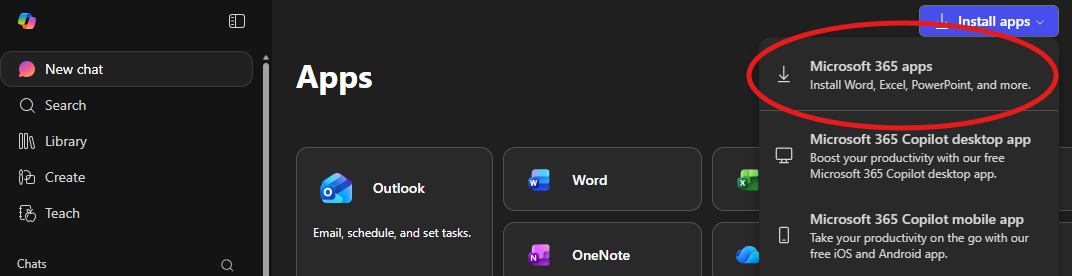
Step 2: Once logged in, click the Apps button in the left-hand navigation menu, then select More Apps. In the upper right corner, click Install Apps and select Microsoft 365 Apps.
(If you cannot find the "Install Office" button, go directly to Install Office Apps.)
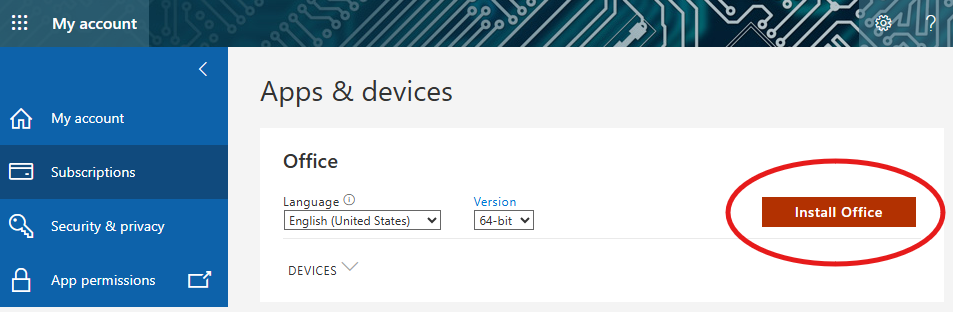
Step 3: Click the Install Office button.
Step 4: The Office installer will download to your computer. Locate the installer file and run it to complete the installation.