
- Go to the My Profile page at My Account and sign in if you haven't already done so.
- If your Default Sign-in method is set as Security Key, you do not need to change anything and can ignore this document.
- If you do not see the Security Key set as the Default Sign-in method, you will need to follow the setup instructions below.
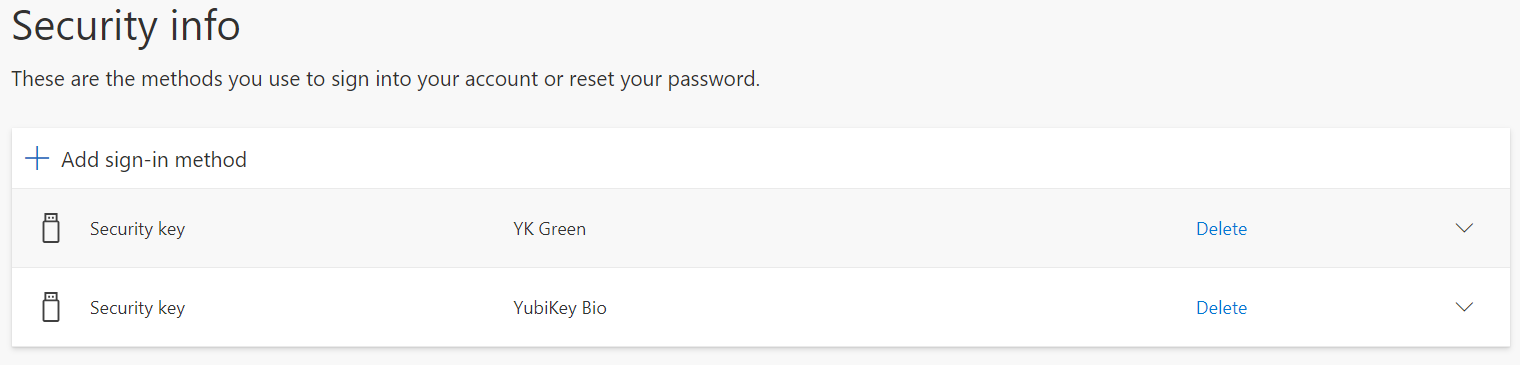
Steps to Register a Security Key from a computer
IMPORTANT: You must be on a device running Windows 10 May 2019 Update or later and using a supported browser. You must also have a physical security key. Your Security Key must be both FIDO2 and Microsoft-compliant. If you have any questions about your security key and whether it's compatible, please open a ticket in the IT Help Desk.
1. Go to the My Profile page at My Account and sign in if you haven't already done so.
2. Select Security Info, select Add method, and then select Security key from the Add a method list.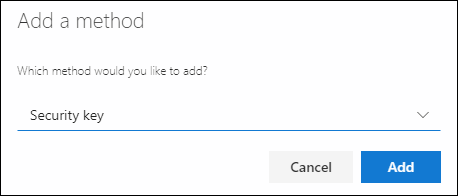
3. Select Add, then select the type of security key you have, either USB device or NFC device
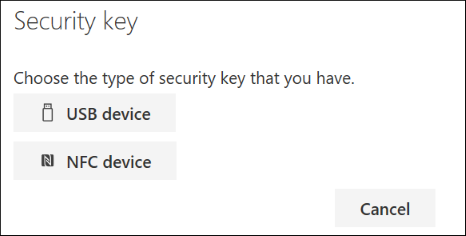
IMPORTANT: If you aren't sure which type of security key you have, refer to the manufacturer's documentation. If you aren't sure about the manufacturer, contact the IT Help Desk for assistance.
4. Make sure that you have your security key physically available, and then on the Security key page, select Next.
5. In the Setting up your new sign-in method page, select Next, and then:
- If your security key is a USB device, insert your security key into the USB port of your device.
- If your security key is an NFC device, tap your security key to your reader.
6. If you're using Chrome or Edge, the browser might prioritize registration of a passkey that's stored on a mobile device over a passkey that's stored on a security key.
- Beginning with a recent update of Windows 11, you can sign in with your Harrisburg University account and click Next. Below More choices, choose Security key and click Next.
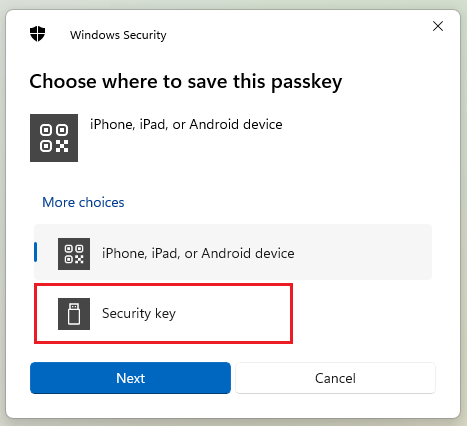
- On earlier versions of Windows (such as if you are running Windows 10), the browser may show the QR pairing screen to register a passkey that's stored on another mobile device. To register a passkey that's stored on a security key instead, insert your security key and touch it to continue.
7. Type your unique security key PIN into the Windows security box, and then select OK. You'll return to the Setting up your new sign-in method box.
8. Select Next
9. Return to the Security info page, type a name you'll recognize later for your new security key, and then select Next.
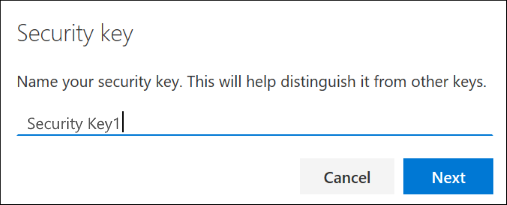
10. Select Done to close the Security key page. The Security info page is updated with your security key information.
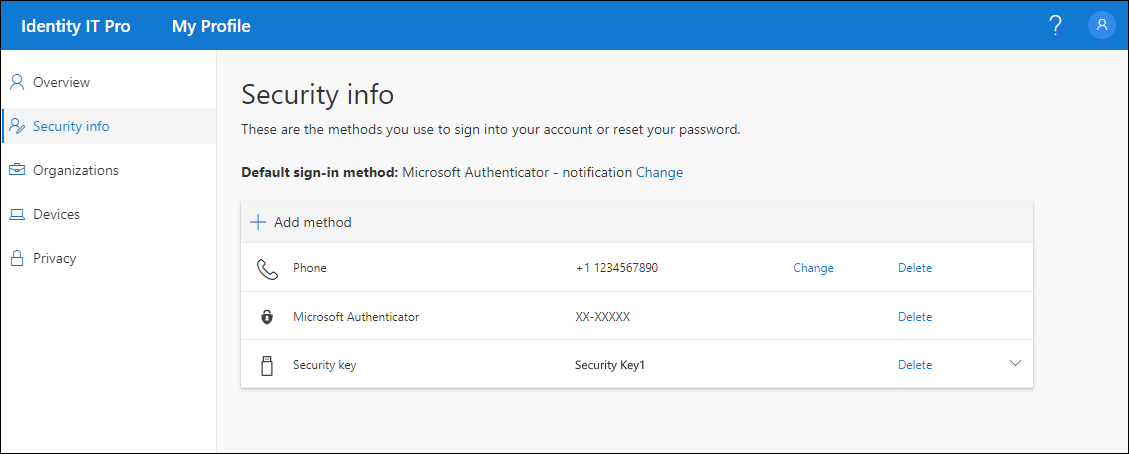
12. Select Change next to the Default sign-in method information.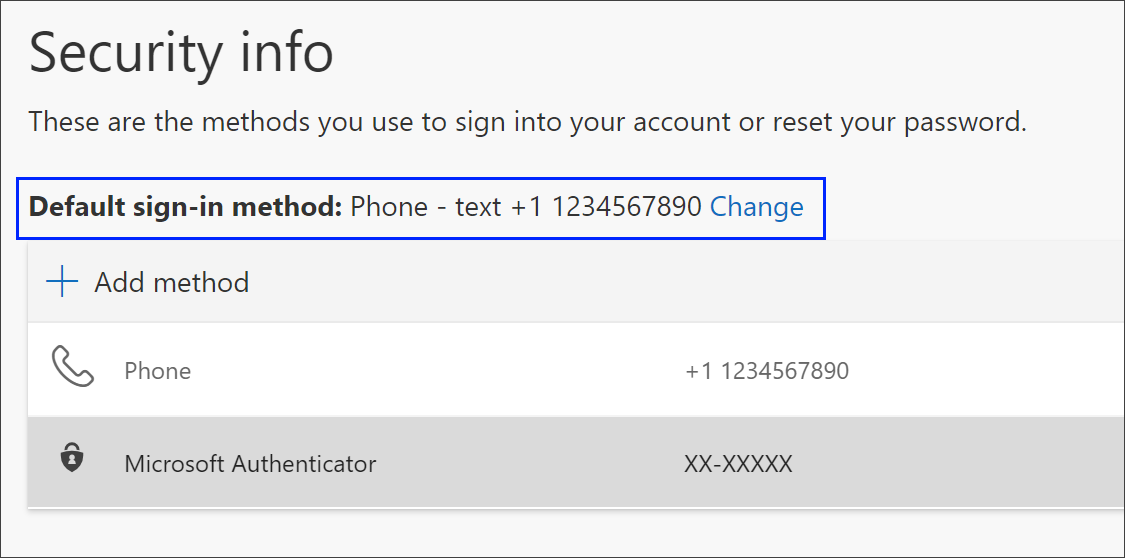
13. Choose Security Key from the list of available methods.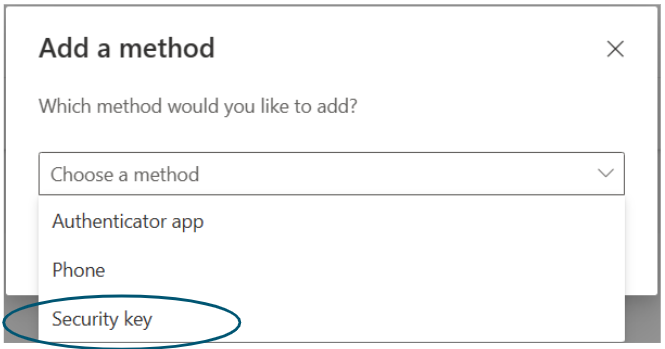
14. Select Confirm. The default method used for sign-in changes to the Security Key. You have now completed all required steps.
More information can be found at System-preferred authentication in Microsoft Entra ID - Microsoft Entra ID | Microsoft Learn and Microsoft Office 365 and Microsoft Entra ID user account setup