
Use this if you are a current student or an HU alumni and you cannot sign in at all because every verification method is gone, for example your phone was lost, stolen, wiped, or replaced, and you have no backup text message or phone-call option on the account.
If you can still sign in by any method, stop here and use the easier route instead:
- You can still get a text, a call, or an approval on another device → Update Security Info and add your new phone.
- You just forgot your password but your verification still works → Forgot/Recover Password.
- You're setting up MFA for the first time → Multi-Factor Authentication & Microsoft Authenticator Application.
Account recovery is only for people who have already been signing in and have now lost every method. It is not a first-time setup path, and it is not available for staff or faculty accounts — staff and faculty should submit a ticket.
What you'll need before you start
- A smartphone with the Microsoft Authenticator app installed. This is required even though your old Authenticator is gone — the verification result is delivered into the app on your current phone. If your phone was lost and you haven't replaced it yet, you'll need a replacement phone first.
- A government-issued photo ID — passport, driver's license, or state ID. The first and last name on the ID must match the first and last name on your HU account. If your account shows a preferred or shortened name, see If verification fails below.
- A few minutes somewhere with decent, even light — not in front of a bright window. You'll photograph your ID and then your face.
How to recover your account
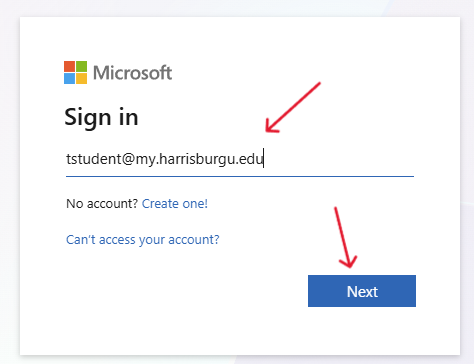
Go to https://login.microsoftonline.com, enter your HU email address, and select Next.
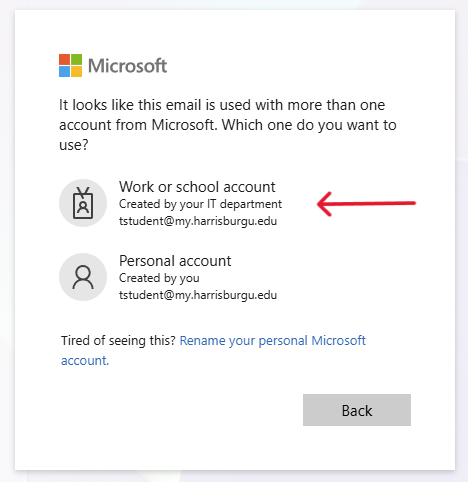
If you're asked which account you want to use, choose Work or school account — the one that says Created by your IT department. Don't choose Personal account; that's a different Microsoft account and it has no recovery option.
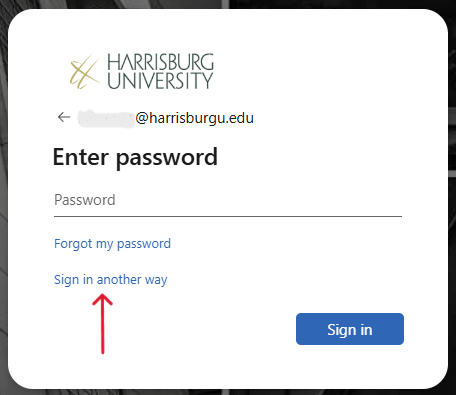
On the Harrisburg University Enter password screen, don't type your password. Select the Sign in another way link underneath the password box.
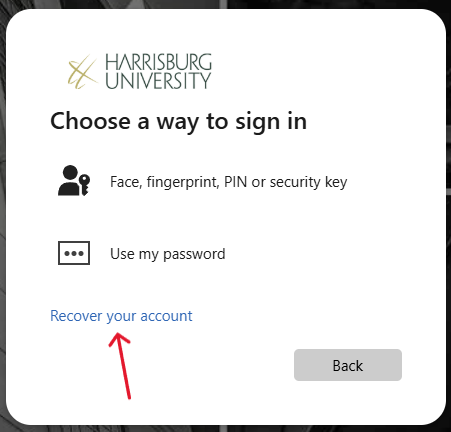
On Choose a way to sign in, select Recover your account.
Don't see "Recover your account"? Contact the IT Helpdesk — it means your account isn't able to use self-service recovery yet, and we'll help you another way.
Read the screen explaining how recovery works, then select Next. You'll be handed off to AU10TIX, the identity verification service HU uses.
If you're on a computer, a QR code appears. Open your phone's camera and scan it — the rest of the ID check has to happen on your phone.
On your phone, select Continue, enter your name and email, and accept the service's terms.
Choose your country or region and the type of ID you have — for example Passport or Driver's License. A passport is usually the most reliable choice.
Read the tips for photographing your ID, select Continue through each one, take the photo, then select Submit photos.
Read the tips for photographing your face, select Continue, and take the photo. This is a live check, so follow any on-screen prompts to hold still or turn your head.
Once your ID and face match, you'll be issued a Verified ID into Microsoft Authenticator. The screen may say Add a Verified ID or Open in Authenticator — select it, then select Open and unlock Authenticator. If Authenticator isn't installed yet, you'll be prompted to install it first.
You'll be asked to complete a quick Face Check inside Authenticator. This is a second face scan, and it's normal — the first one was the ID service, this one is Microsoft confirming the live you against the photo on your Verified ID. Your screen brightness will change on purpose during the scan.
When everything checks out you'll be given a Temporary Access Pass — a sign-in code. Copy it and select Sign in.
Paste the Temporary Access Pass where you'd normally enter your password. You'll land on the Security info page.
Register a new sign-in method right away — a passkey, or the Microsoft Authenticator app on your current phone. Then remove the old device's entry.
The Temporary Access Pass expires in 24 hours. If it runs out before you've added a new method, nothing is broken — you'll just need to start recovery over to get a new one.
Do this once you're back in
Spend two minutes now so you never need this page again:
- Add two methods, not one — Authenticator on your phone plus a passkey, or a phone number for text or voice as a backup.
- If you're travelling outside the US, make sure a working method doesn't depend on a phone number you'll lose.
- Remove entries for phones you no longer have.