NOTE: Microsoft Surface Hub locations:
(326 Market St. - 1012, 1036, 1136, 1462, 1464) (222 Chestnut St. - 210B, 210C, 310, ADMA mobile carts) (225 Market St. - 222)
TABLE OF CONTENTS
- Section 1: Intro
- Section 2: Meet Now
- Section 3: Share
- Section 4: Whiteboard
- Section 5: Call
- Section 6: Join with an ID (Teams or Zoom)
- Section 7: How to invite the Surface Hub to your internal Teams meeting for one-click Join
- Section 8: How to contact the OIS Help Desk for IT support
Section 1: Intro
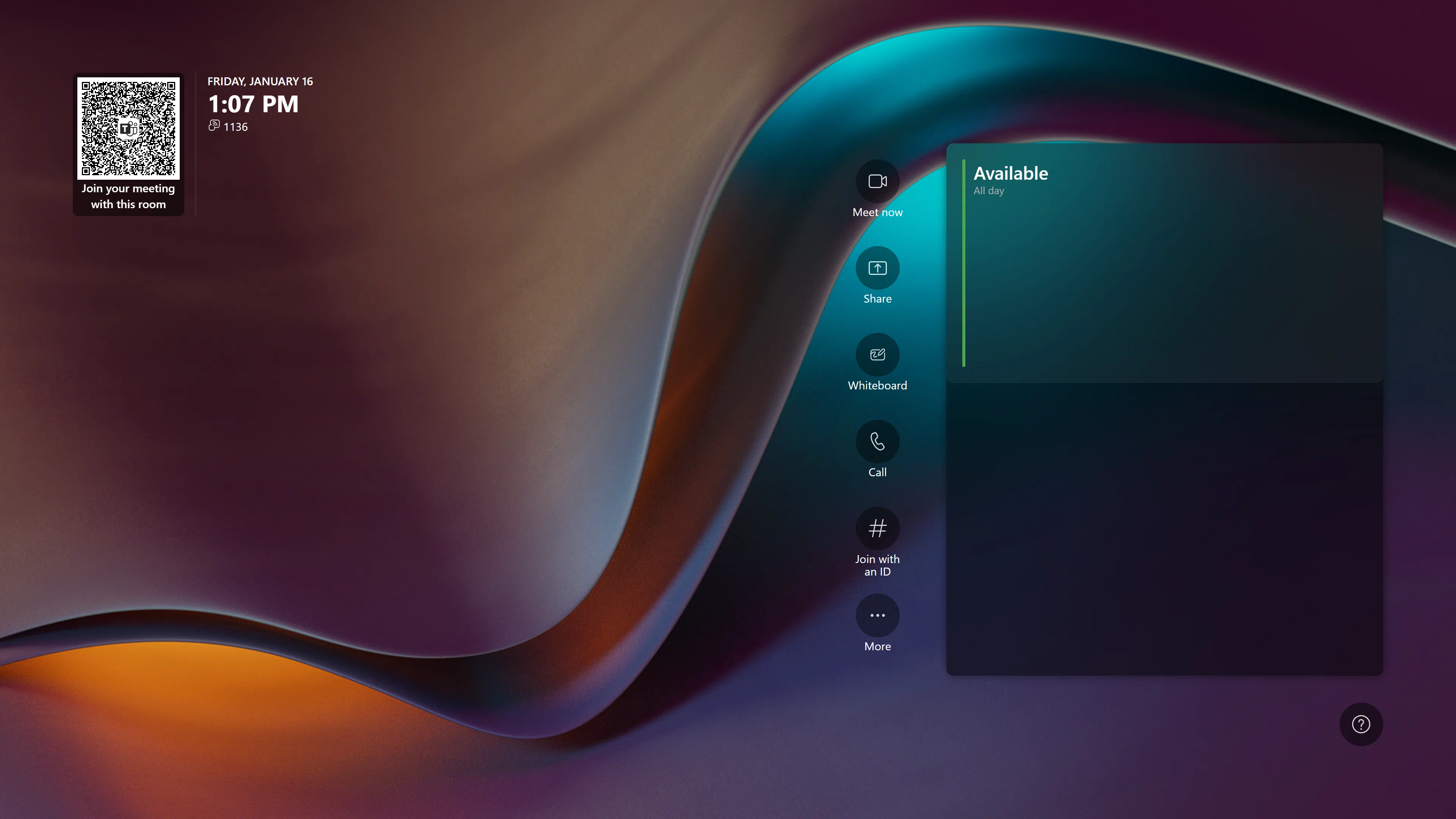
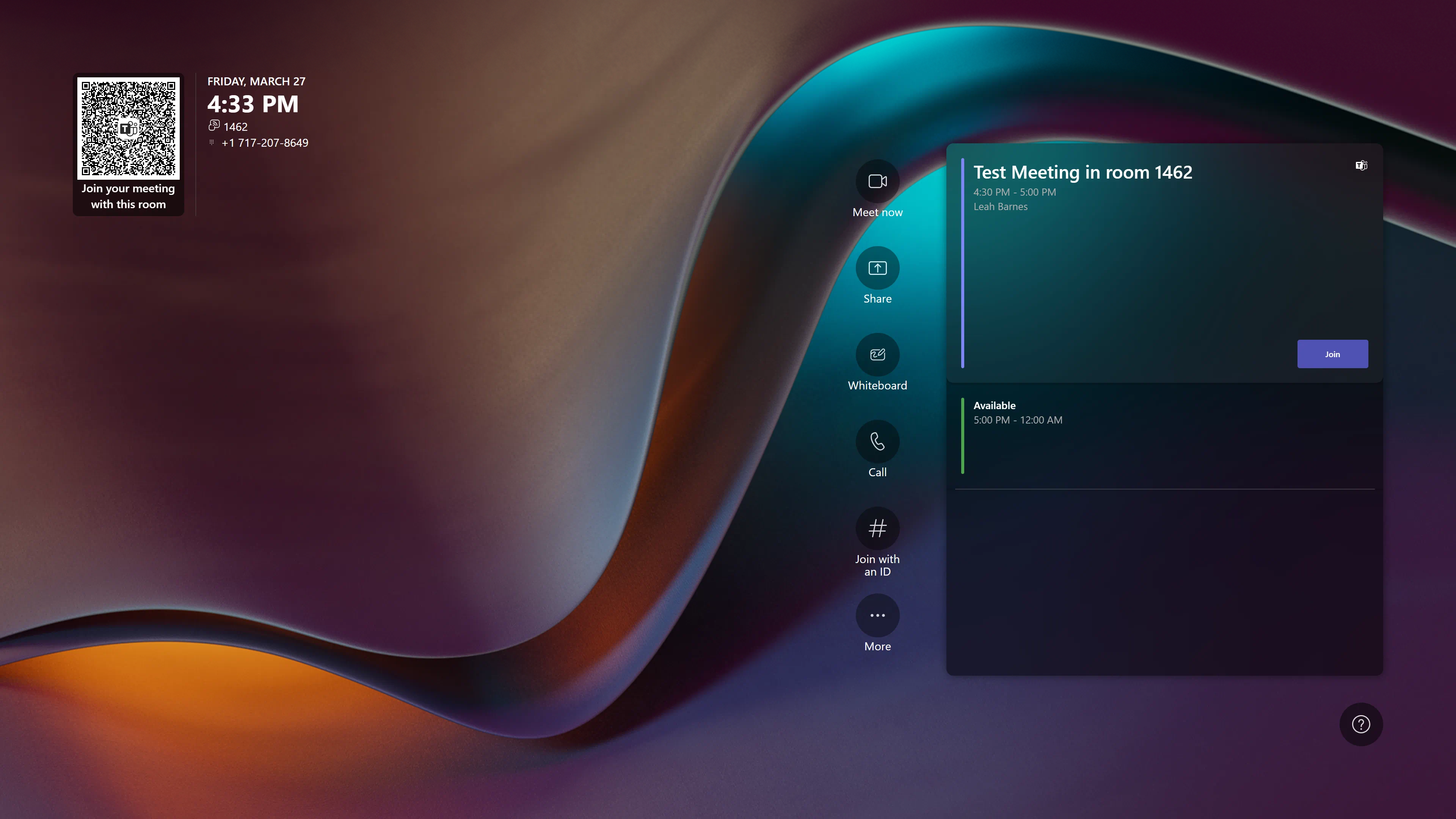
When you walk into the room, the surface hub should automatically "wake up" from sleep mode and display the home screen. If you do not see the home screen, contact the IT help desk right away for assistance.
From this home screen, you can start a new Teams meeting, share your laptop screen, open up a whiteboard for local or remote collaboration, start a conference call, or join an already existing Teams meeting via your meeting ID and passcode.
If you are an internal user and have already invited the hub to your Teams meeting, you can also click the "join" button when it shows up shortly before your meeting on the home screen's calendar.
Section 2: Meet Now

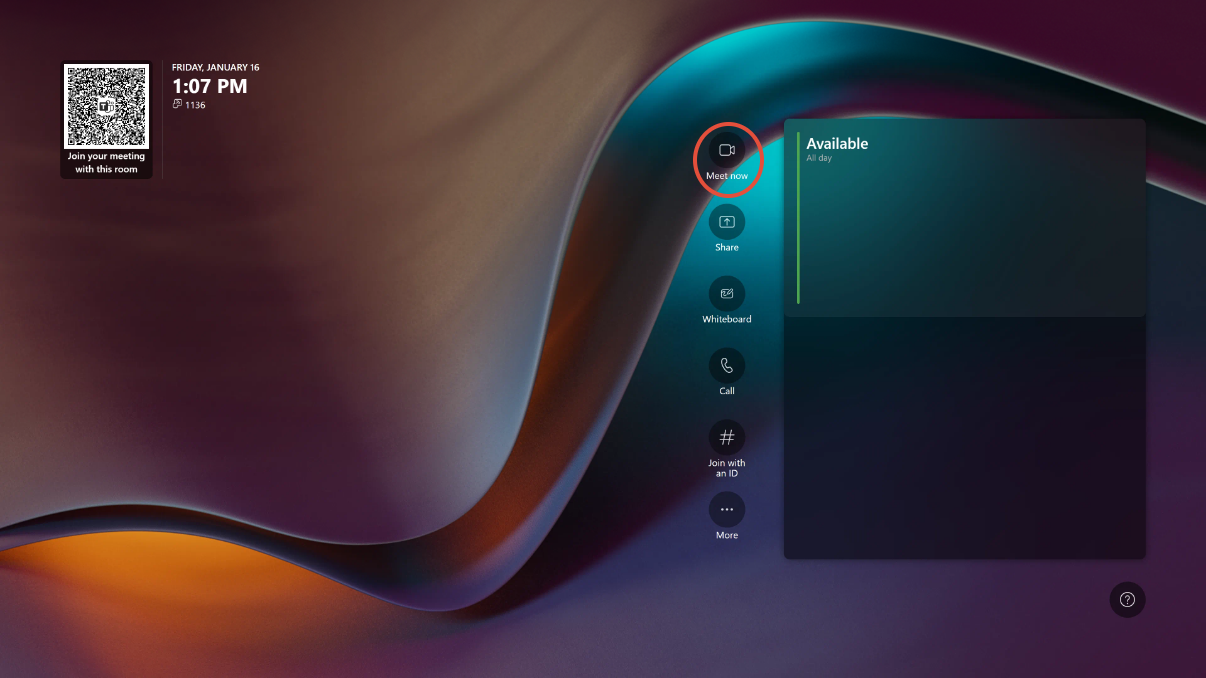
1. Clicking the Meet Now button will immediately start a Teams Meeting. You can then invite participants by clicking "Add participants" and typing the participant's name (internal only) or phone number (anybody).
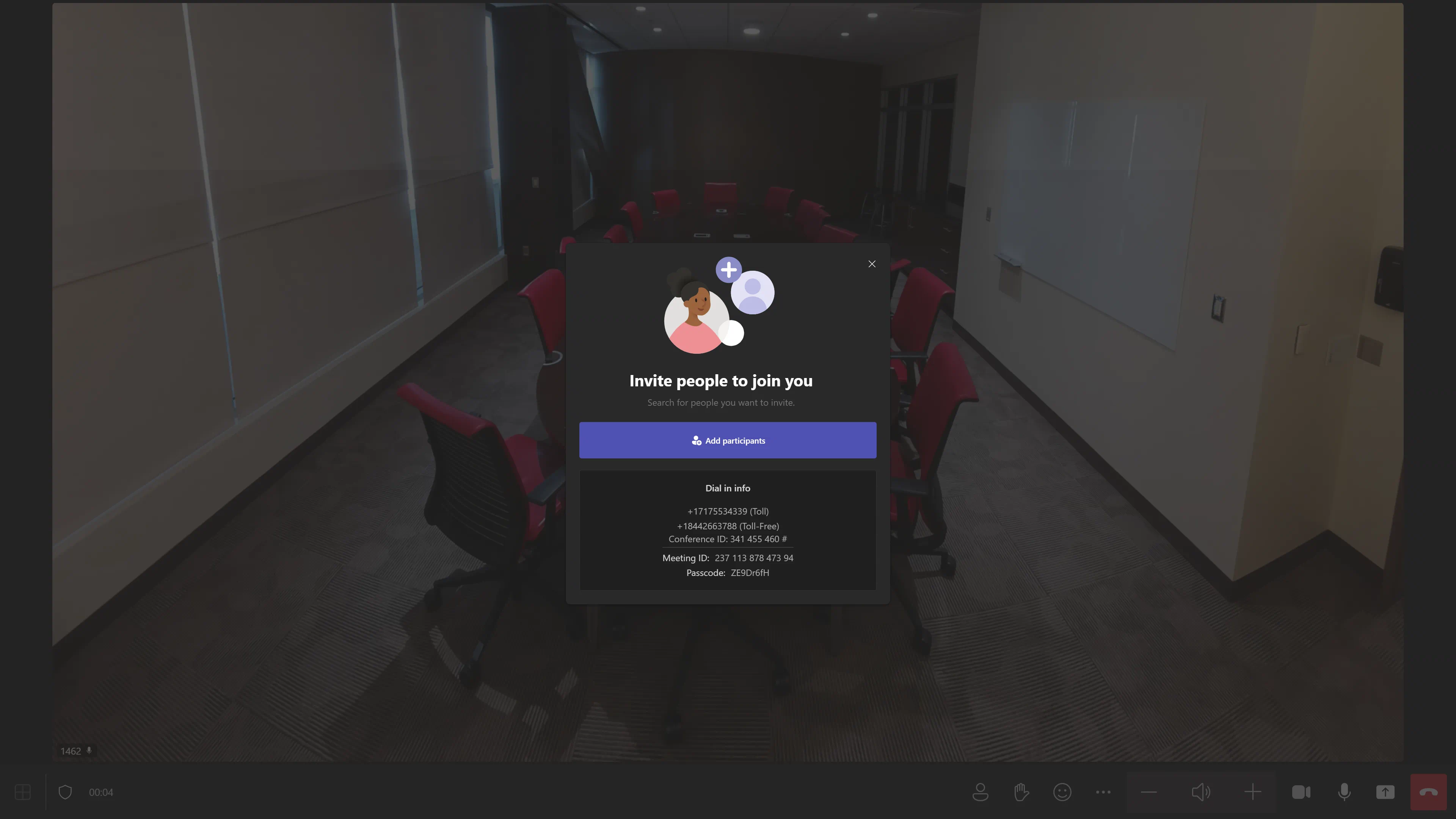
2. If you close the window, and want to invite a new participant, you can tap on the people icon at the bottom of the screen to open up the window again.
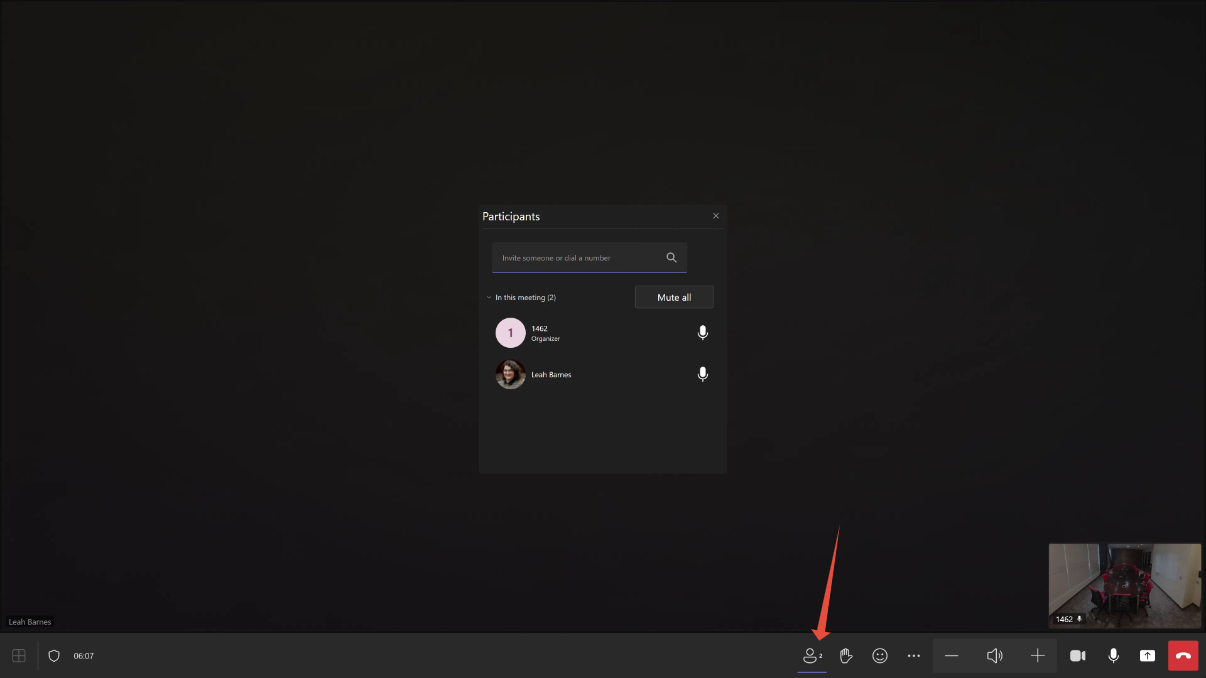
3. You can invite additional participants, lower, mute, or increase the speaker volume, hide your camera, mute your microphone, share a whiteboard, or end the meeting using the controls below.

Section 3: Share
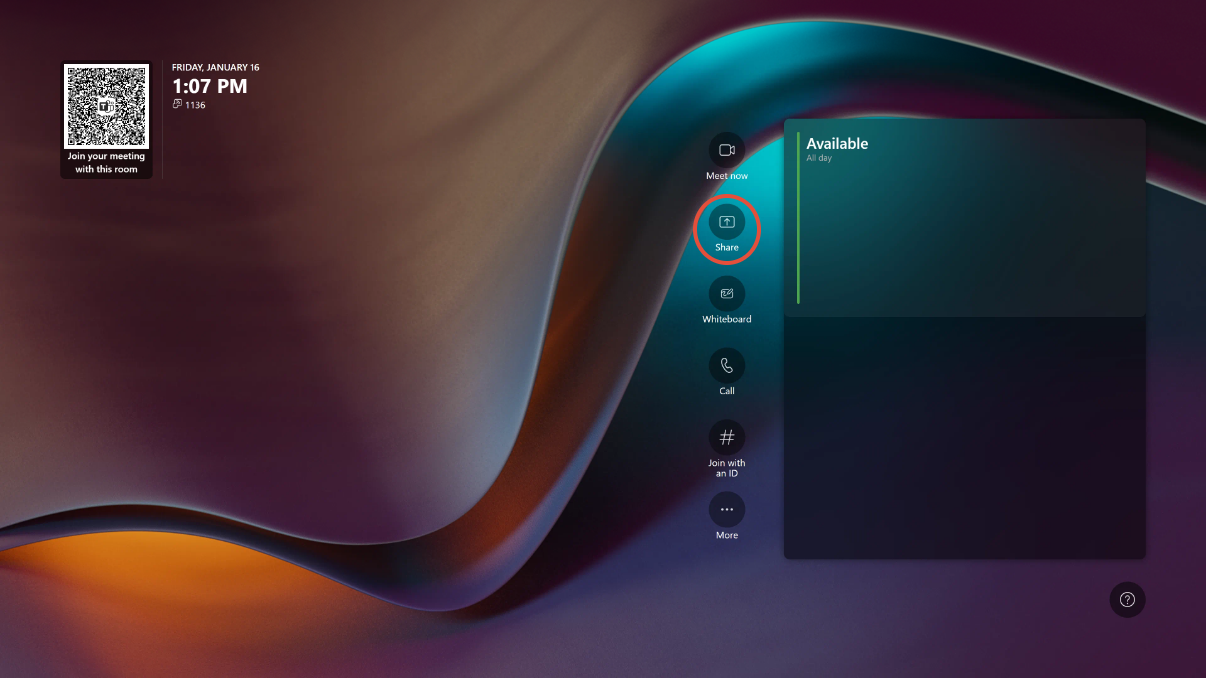
1. Clicking the "Share" button will bring up this screen, which instructs users to use Teams Cast on their laptop to share content. You'll need to be connected to our Wi-Fi to be able to use this feature.
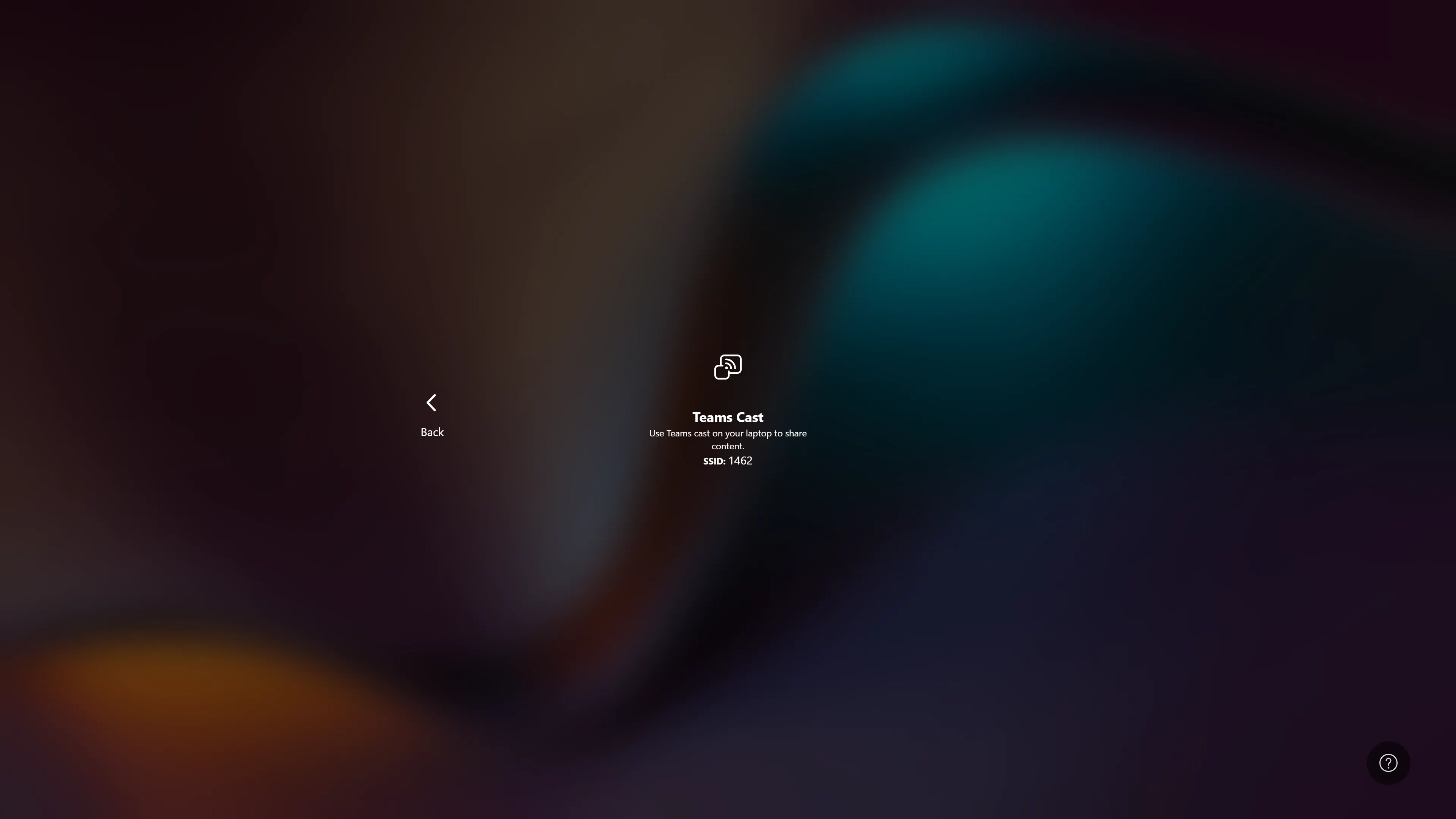
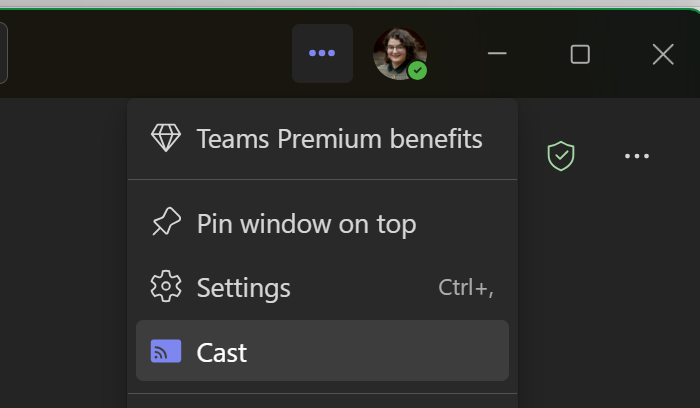
2. To find Teams Cast, open up Teams on your laptop. Navigate to the top of the window and find the three dots next to your profile image. Click the three dots and then click the "Cast" button.
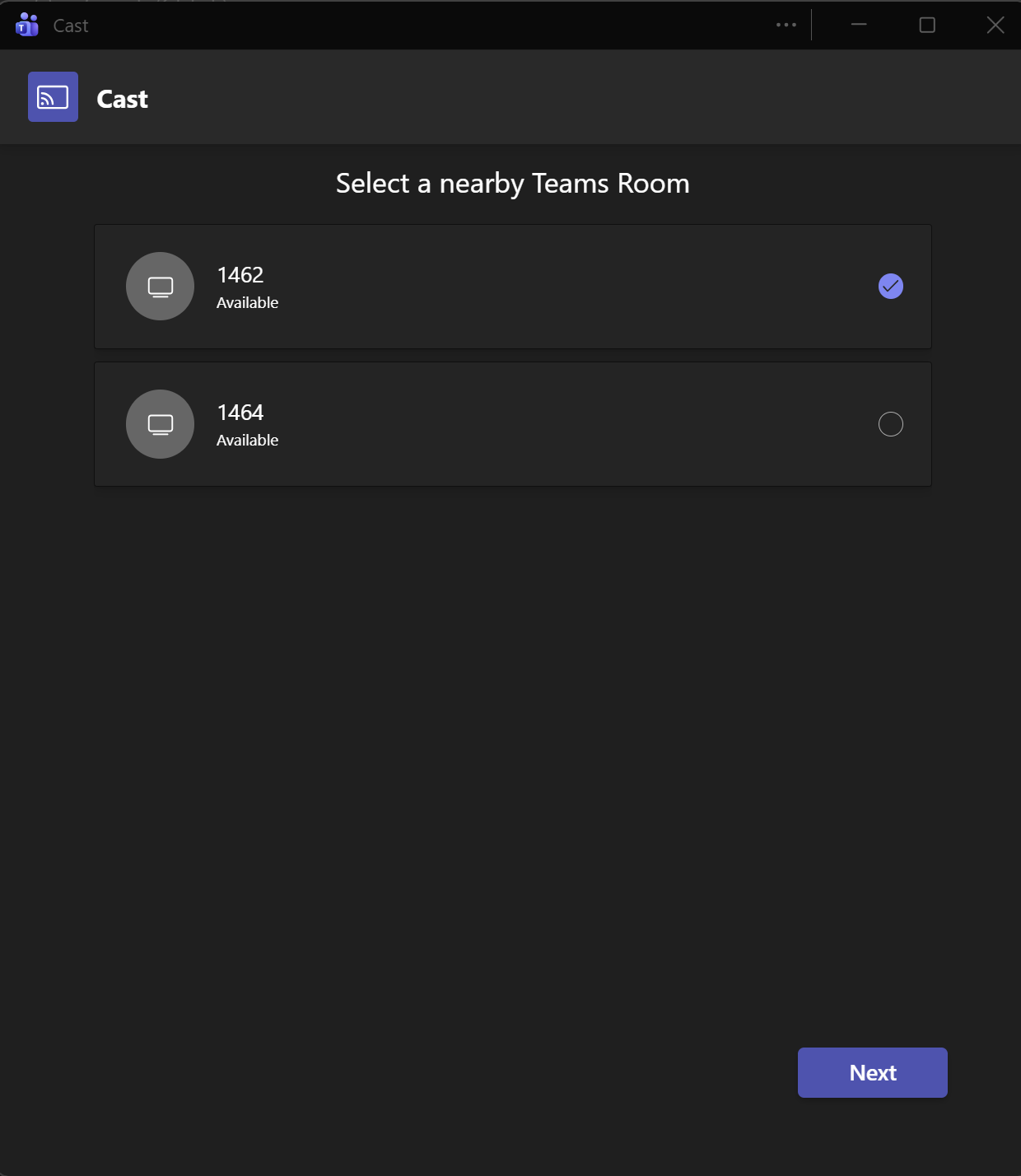
3. Then, select the room that you're in. The room number can be found on the surface hub screen if you're unsure. Click "Next" to proceed to the next screen. If you don't see the "Next" button, try resizing or maximizing the window and it should appear.
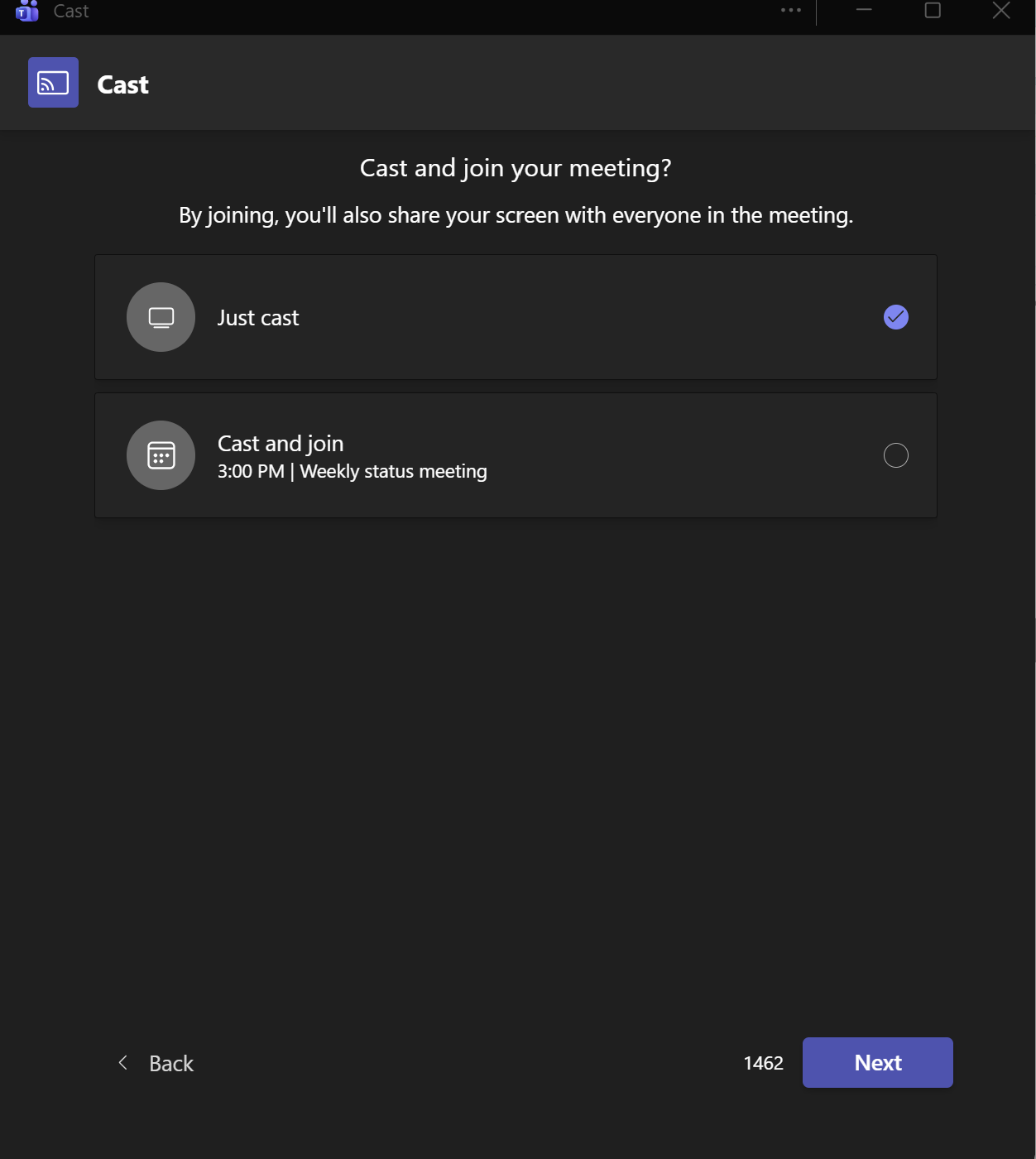
4. Click Next again to just cast, or if you have an upcoming meeting, you'll have the option to cast and join your upcoming meeting alongside the Surface Hub.
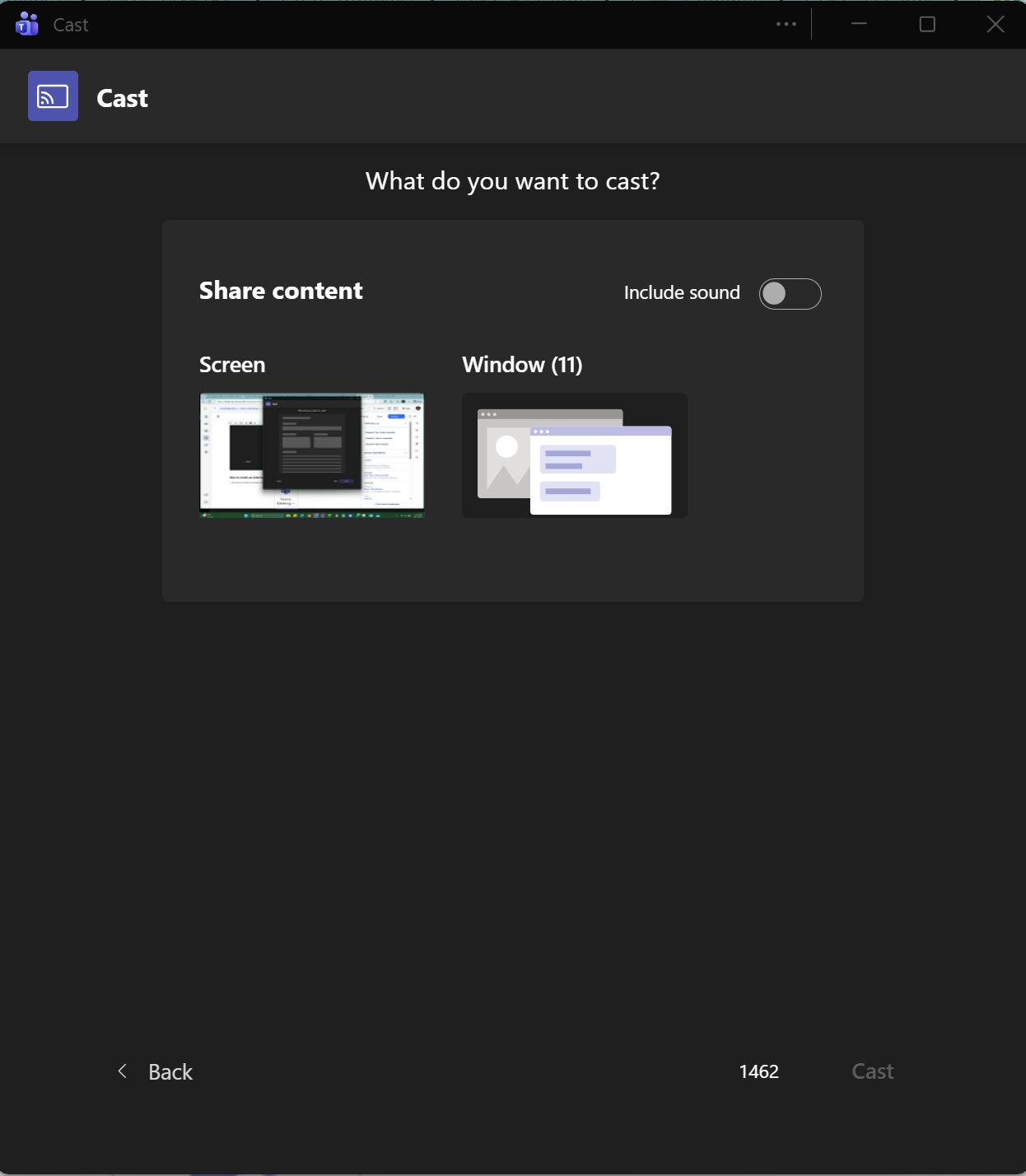
5. Select the content you'd like to share by clicking either "Screen" or "Window" and then selecting the window you'd like to share. If you are sharing a video, make sure to toggle the "include sound" option. Then, click "Cast"
6. You will then join the meeting and share the content you selected.
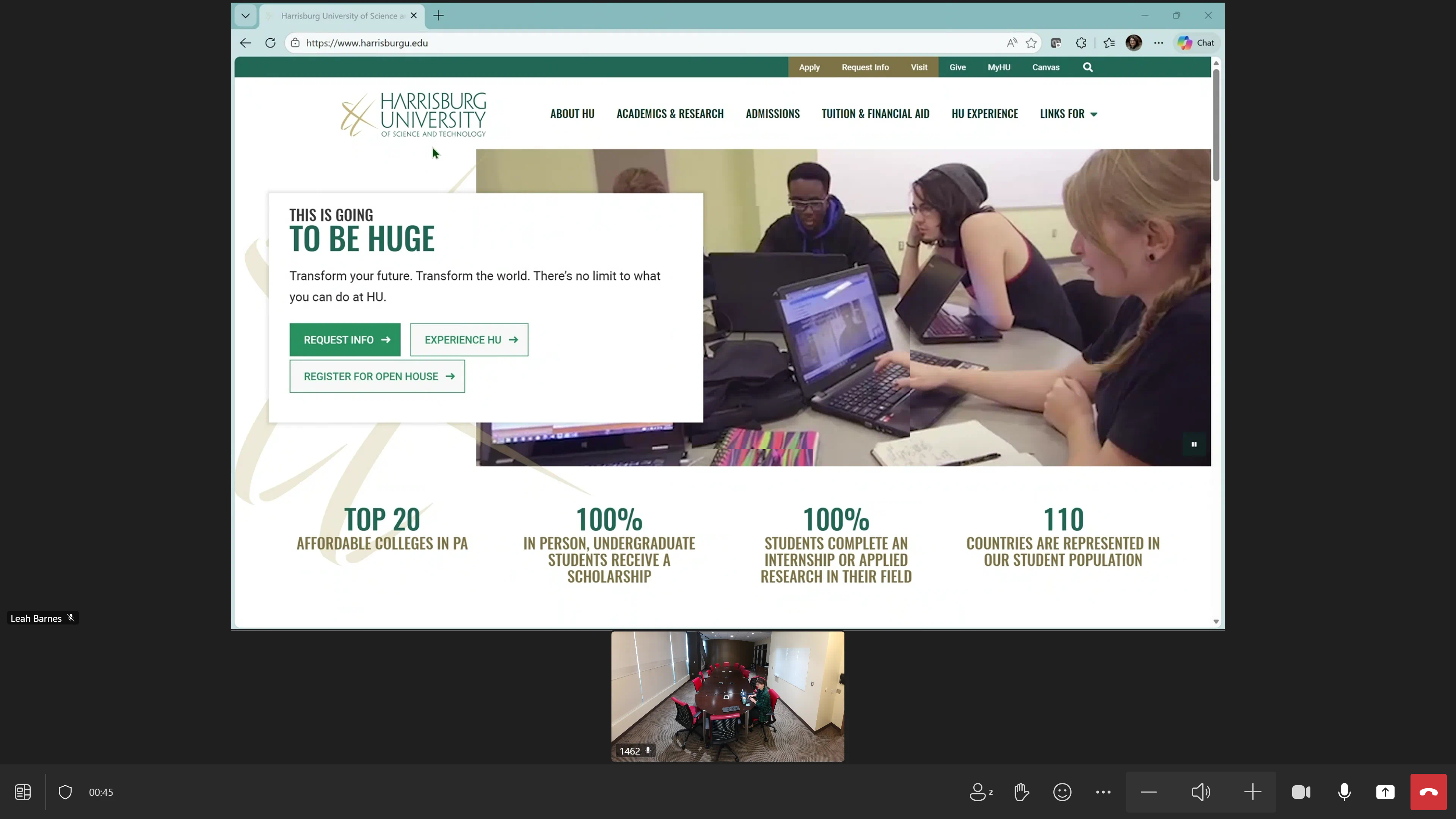
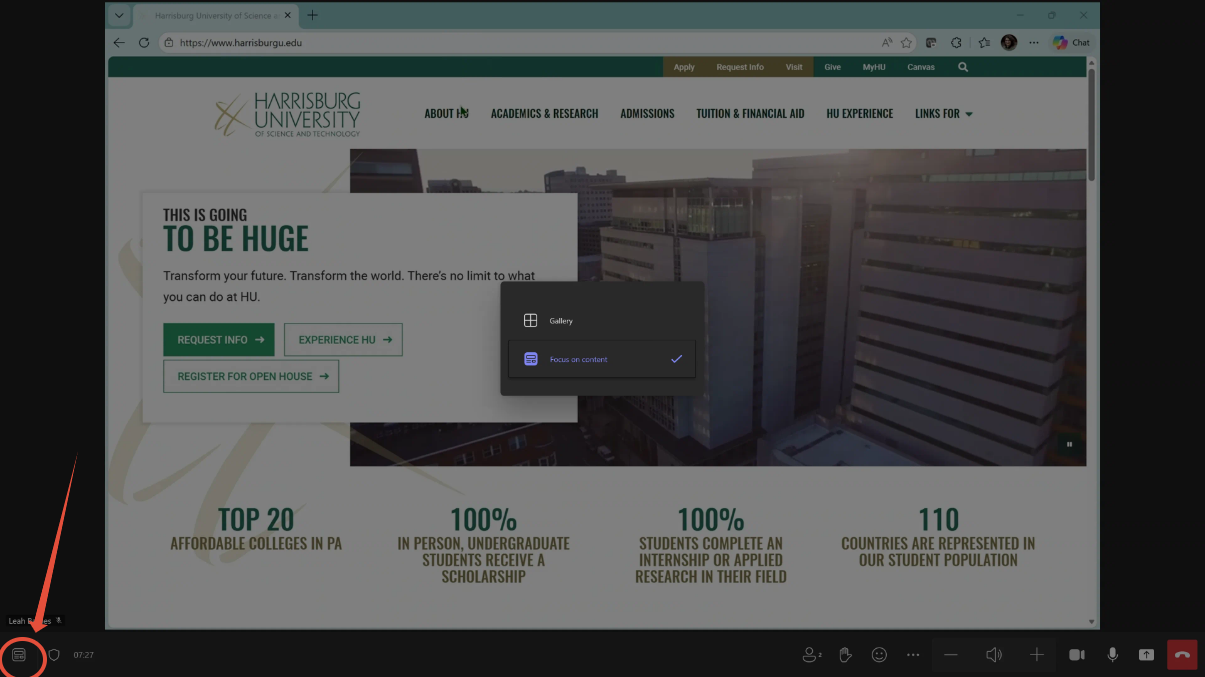
7. To focus on the content and hide the self-view, tap the "change your view" button in the bottom left corner, then tap "Focus on Content to change the view to a full-screen view of the content, minimizing the room camera. Then, tap anywhere outside the "change your view" window again to close the window and return to your content.
Section 4: Whiteboard
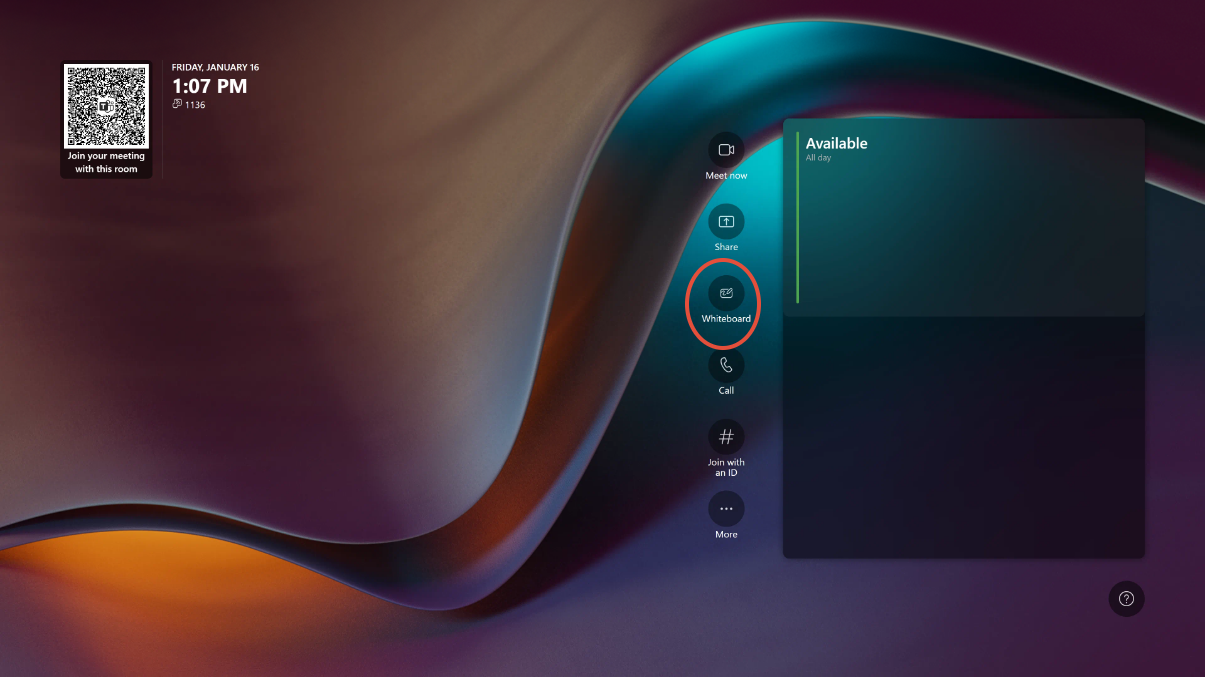
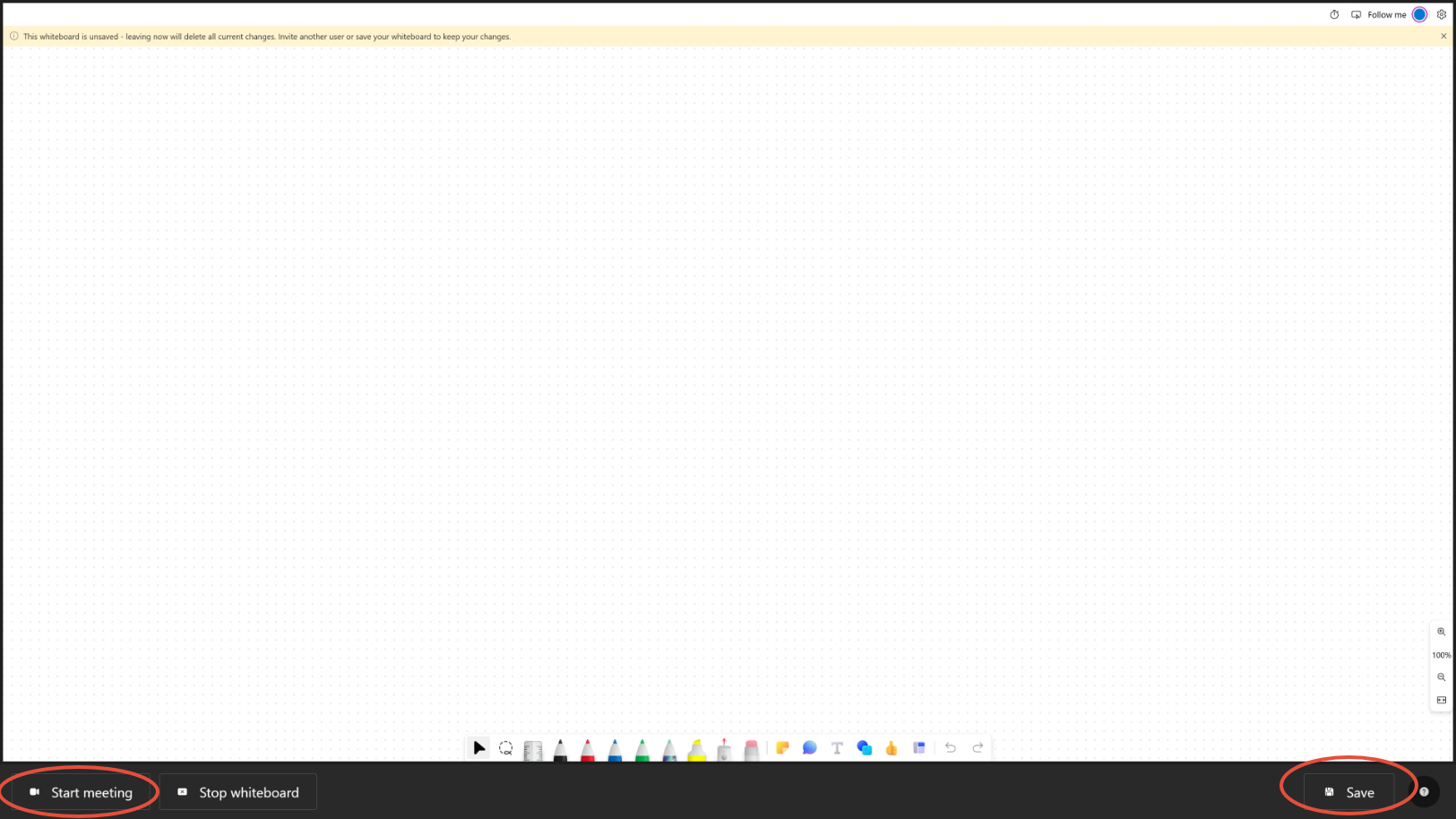
1. The Whiteboard button opens up a new, blank whiteboard. You can use the pens magnetically attached to sides of the surface hub to annotate on the whiteboard. To collaborate on the whiteboard, you can tap the "Start meeting" option at the bottom left corner. To save the whiteboard, you can click the "Save" button on the bottom right corner. Only internal HU users can save the whiteboard.
Section 5: Call

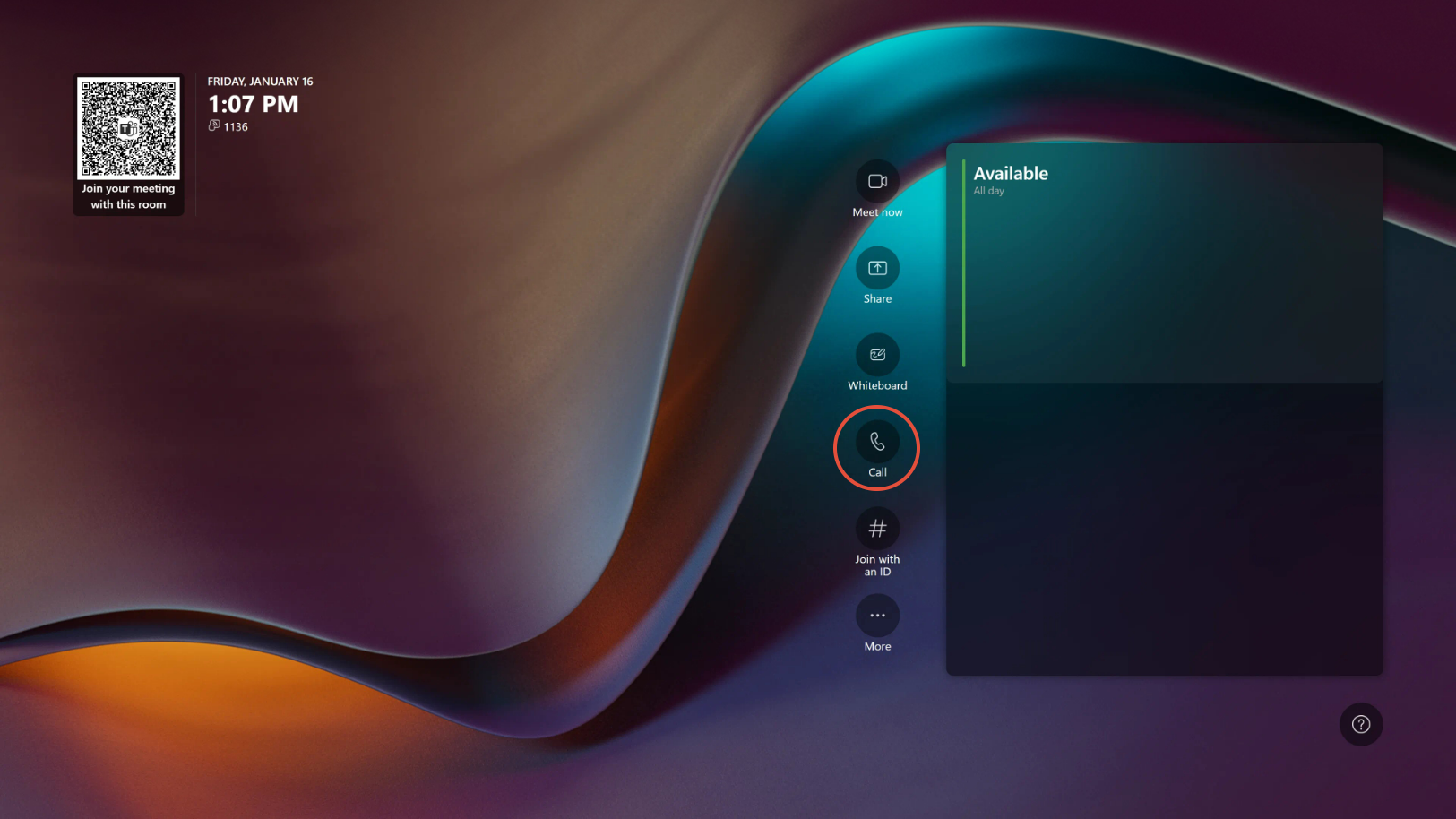
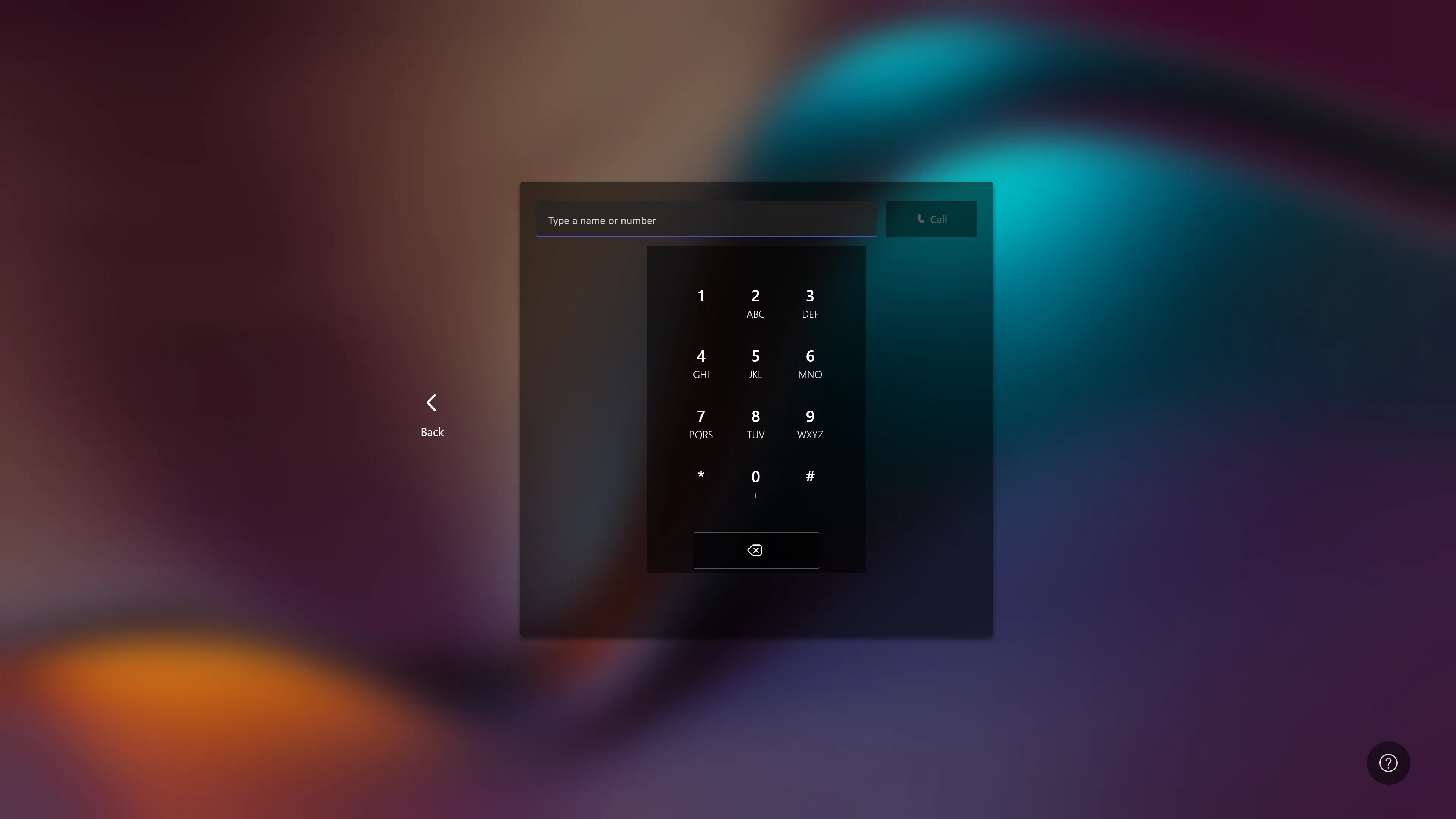
1. You can start a teleconference by dialing a phone number directly. You do not need to dial 9 for an outside number. Click "Call" to begin the teleconference.
Section 6: Join with an ID (Teams or Zoom)

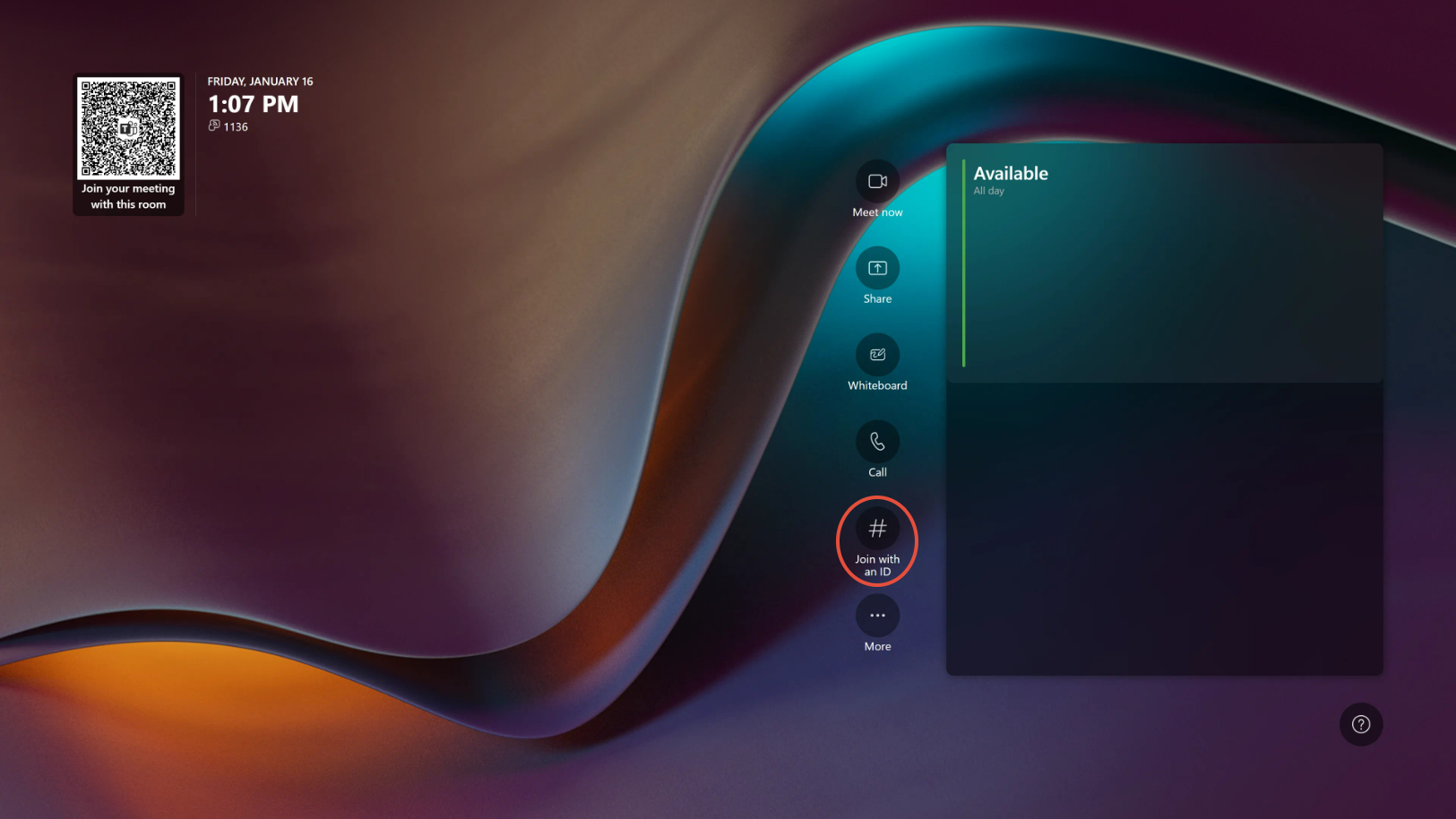
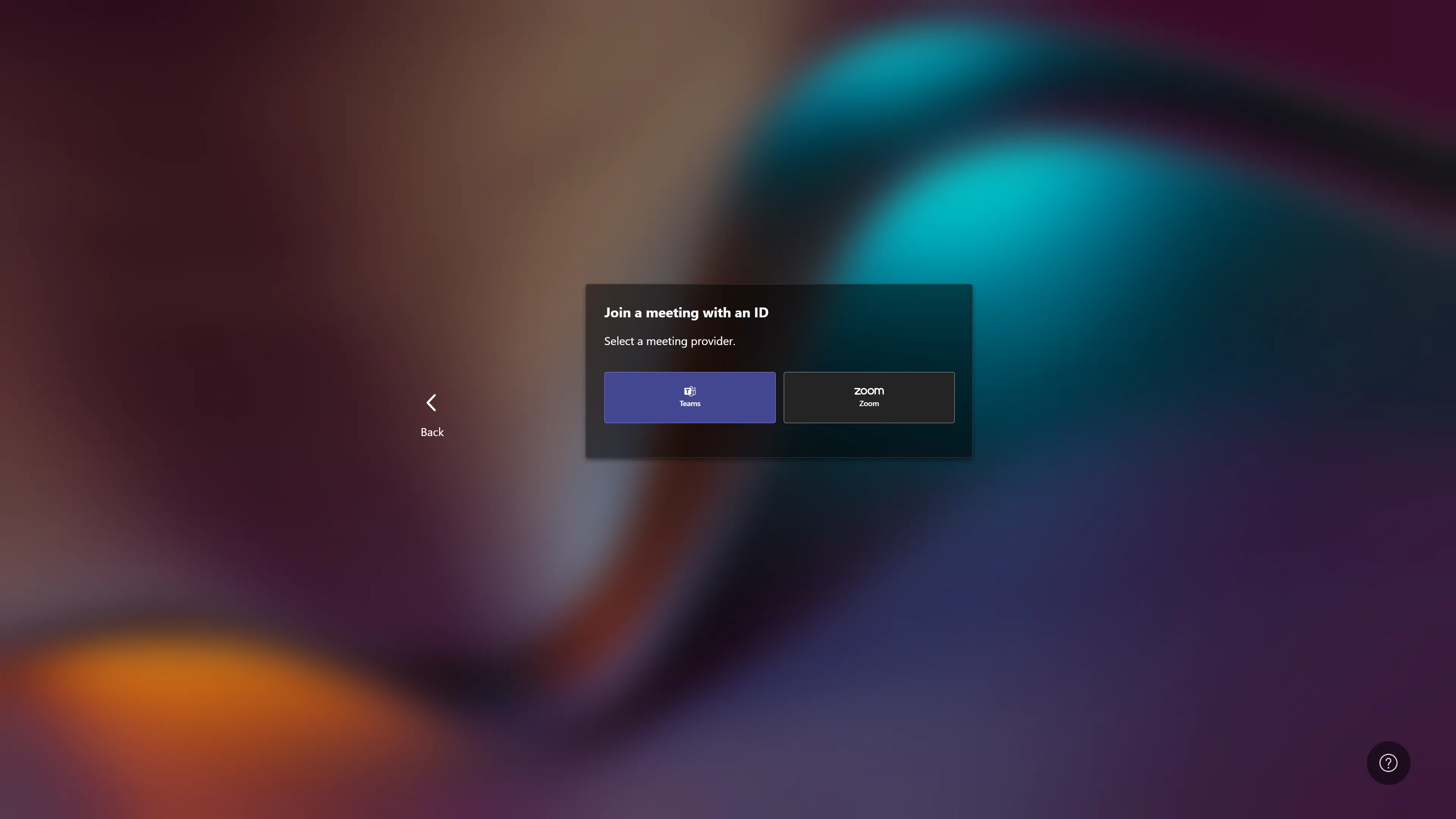
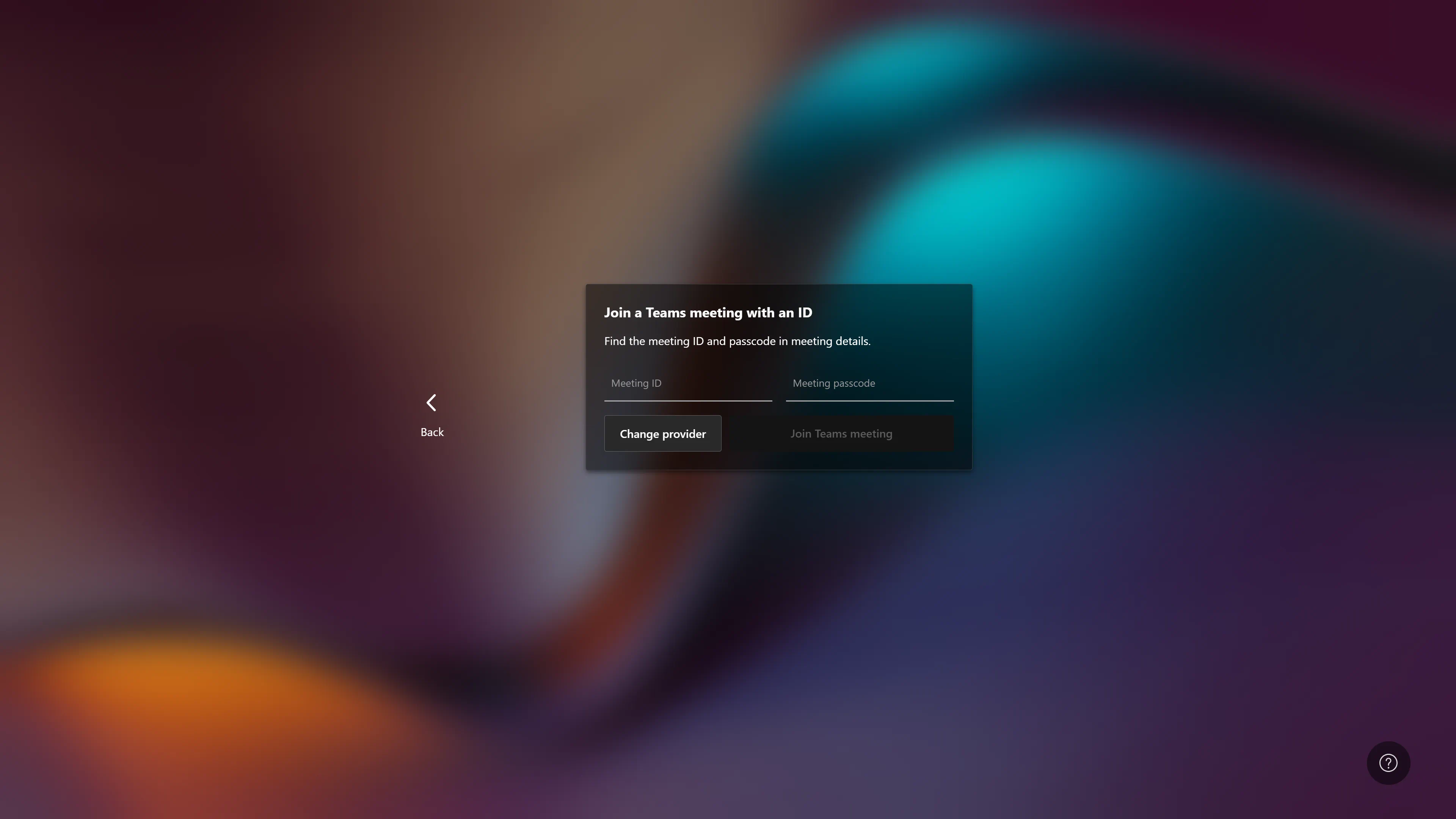
1. You can join a Teams or Zoom meeting by entering the meeting ID and passcode. Microsoft Teams meeting IDs and passcodes can be found in the invitation email, your Teams calendar, or during an active meeting under "Meeting Info"
This option is great for external users who are unable to invite themselves as meeting participants using the surface hub interface.
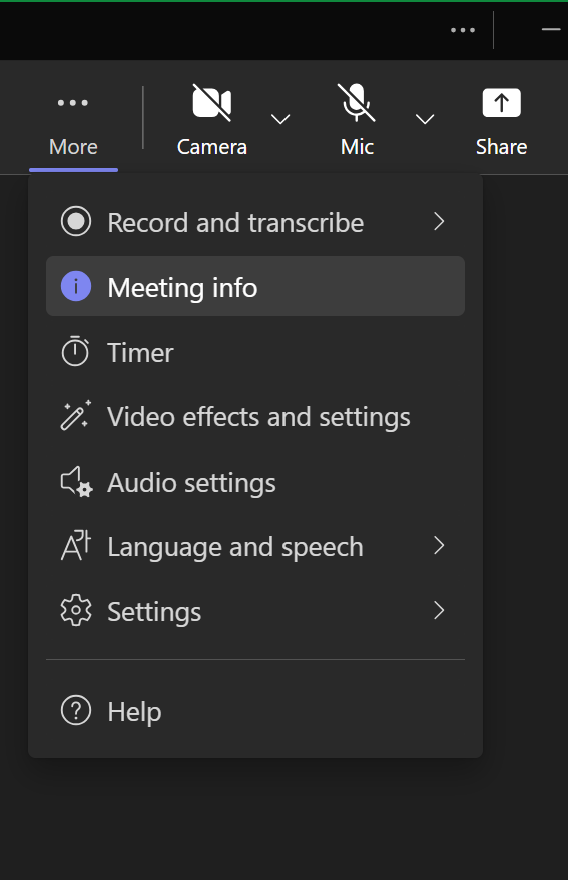
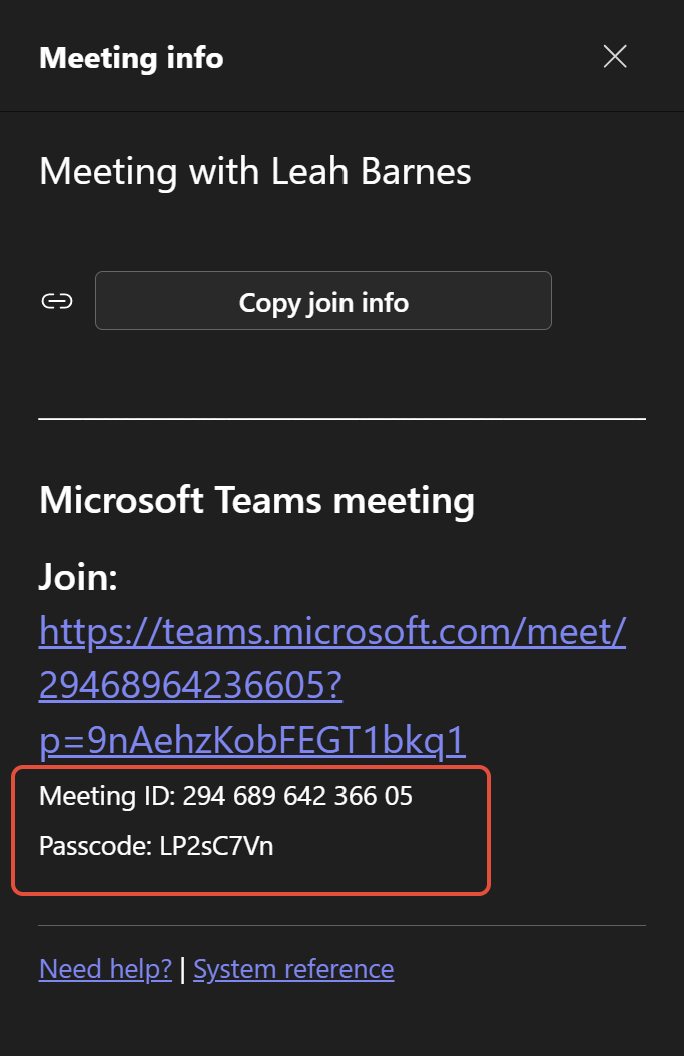
2. To find the meeting info during an active meeting, click "More" then "Meeting Info" A new window will open with the meeting info. You'll see the meeting ID and Passcode under the join meeting link.
Section 7: How to invite the Surface Hub to your internal Teams Meeting for One-Click Join
Option 1: Inviting the Surface Hub using Microsoft Outlook
1. Go into your Outlook calendar and select "Teams Meeting" then select "Schedule Meeting" 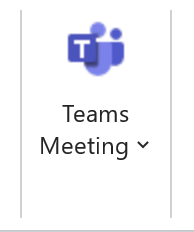
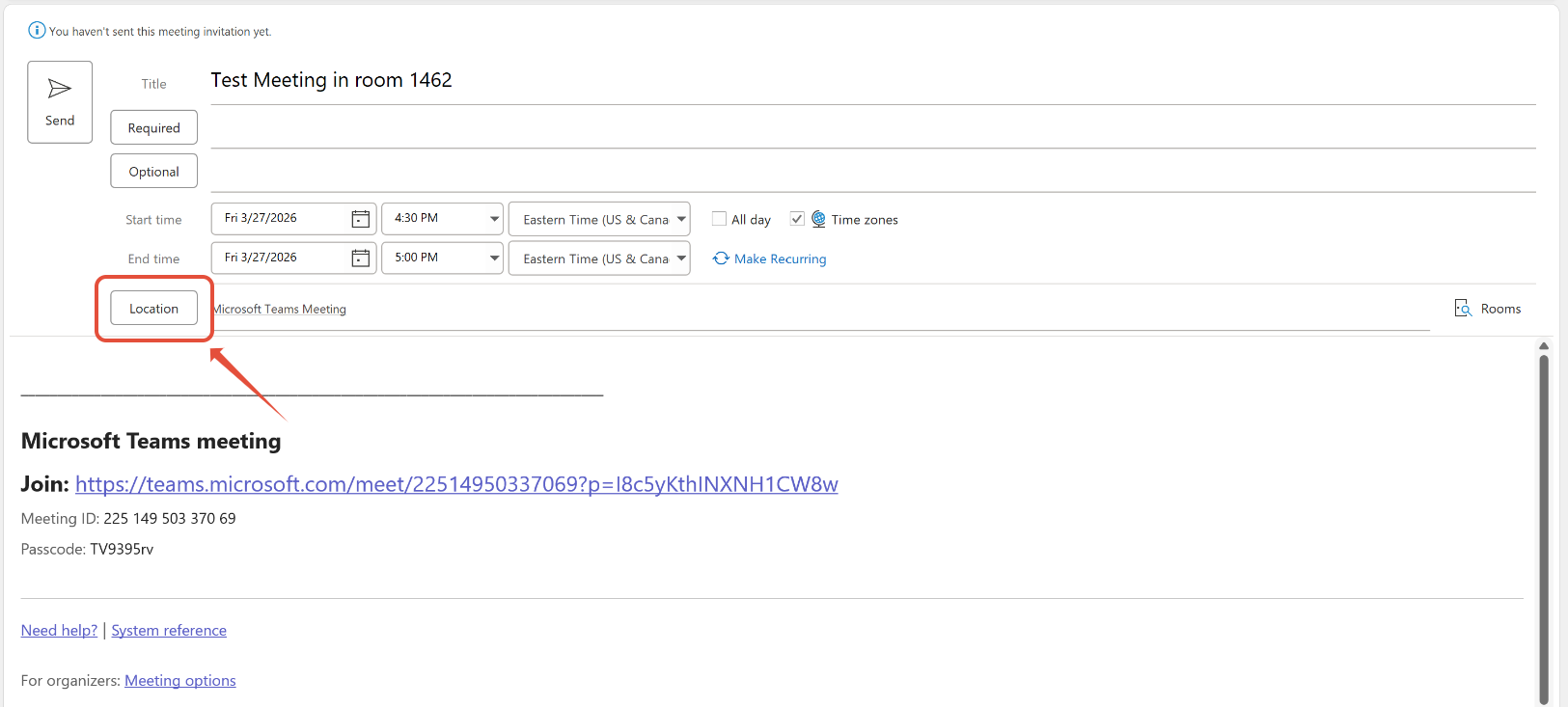
2. Fill out the information that you need for your meeting. Click on "Location."
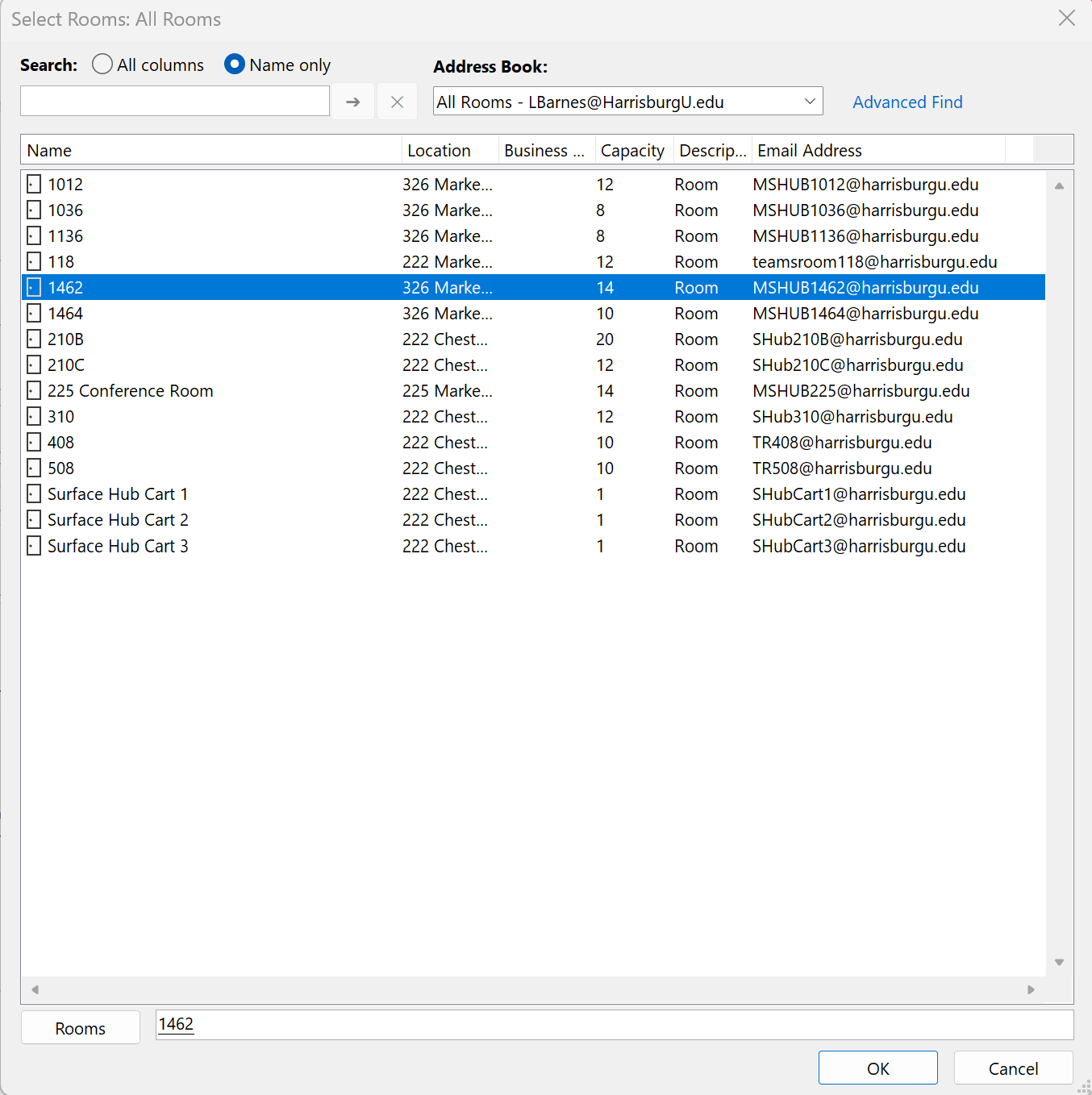
3. Double-click on the room you would like to use for your Teams Meeting and then click "Ok."
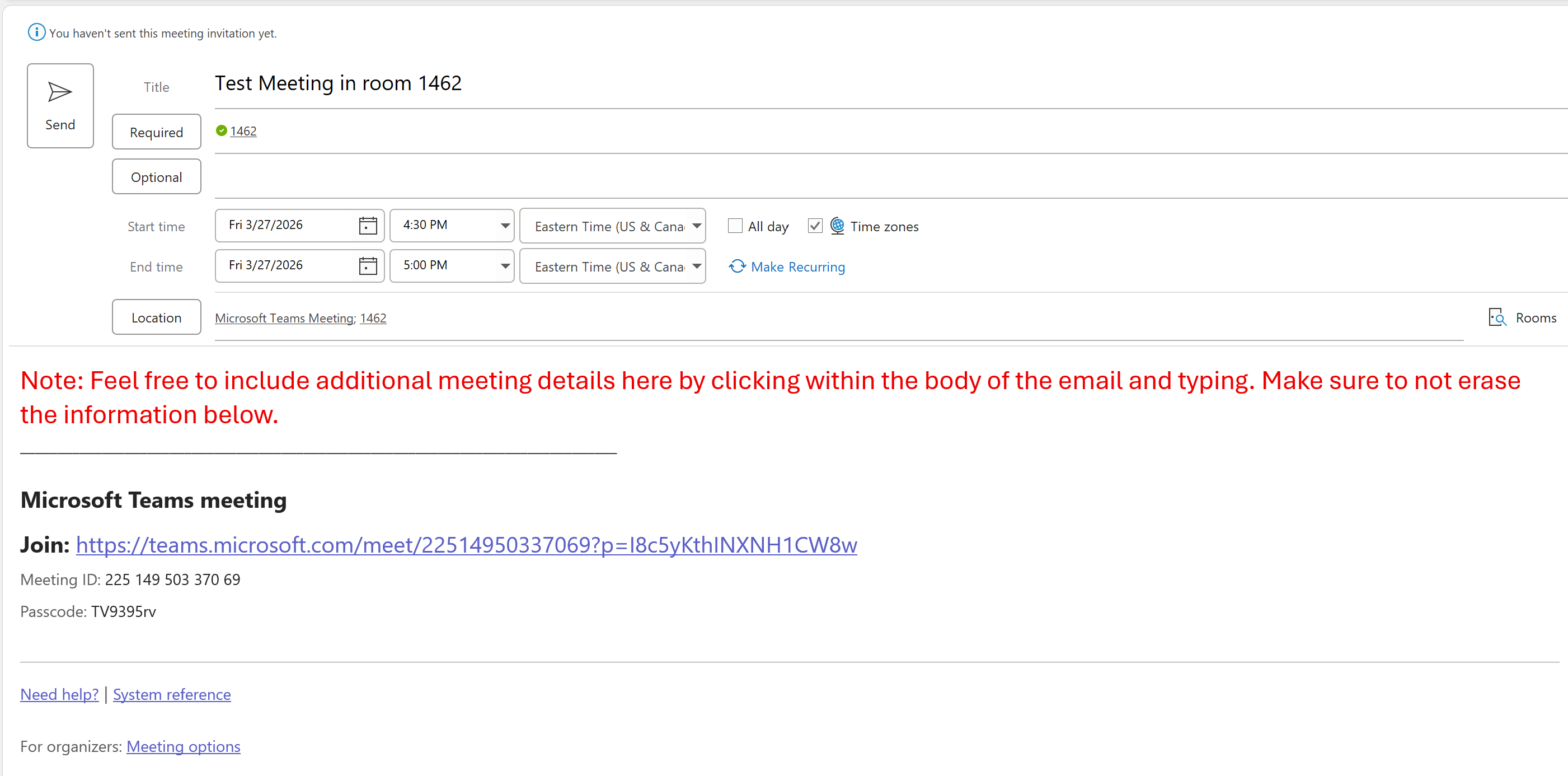
4. You can then send your invitation to your participants. Your virtual participants will join the meeting by clicking on the Join Meeting link in their meeting appointment that you are sending them.
5. The day of your meeting, you'll be able to see the details show up on the home screen of the Surface Hub. 15 minutes before the meeting start time, you'll be able to click on the "Join" button to join the meeting.
Option 2: Inviting the Surface Hub using Microsoft Teams
1. Go into your Teams calendar and select "New."

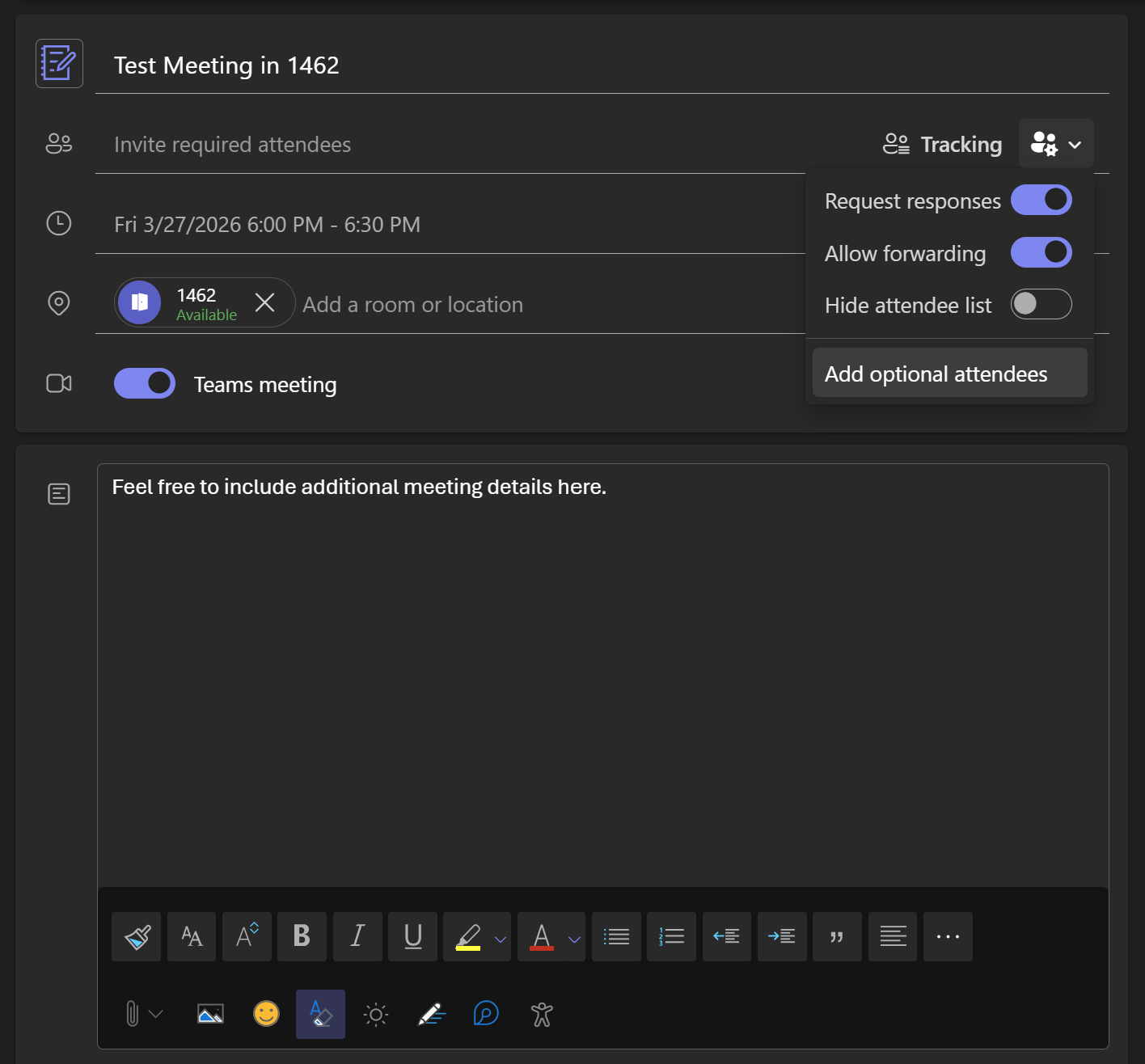
2. Fill out the required information for your meeting. If you have other virtual participants, make sure to toggle "Teams Meeting" and invite the other attendees. To add Optional attendees, click on the attendee settings icon.
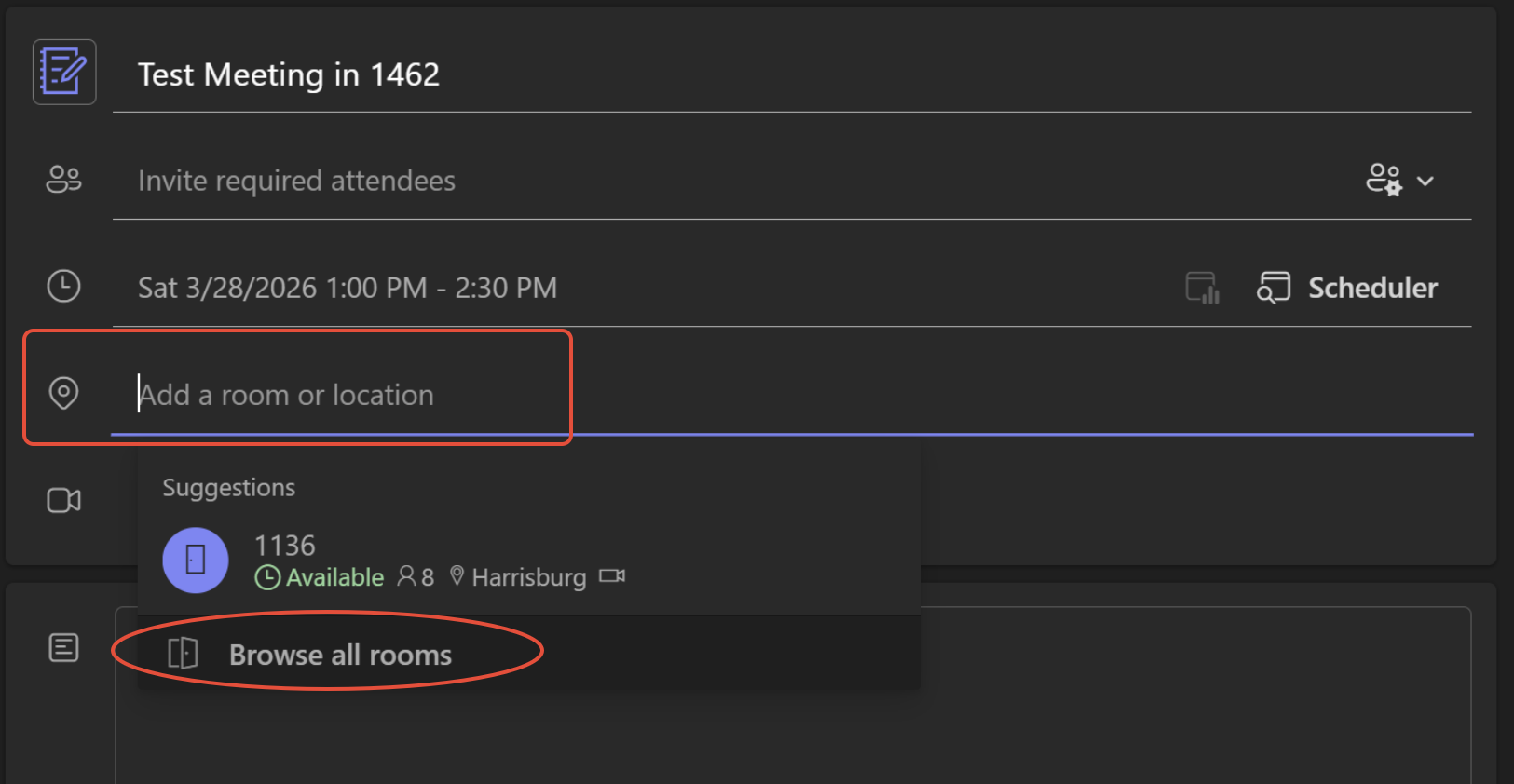
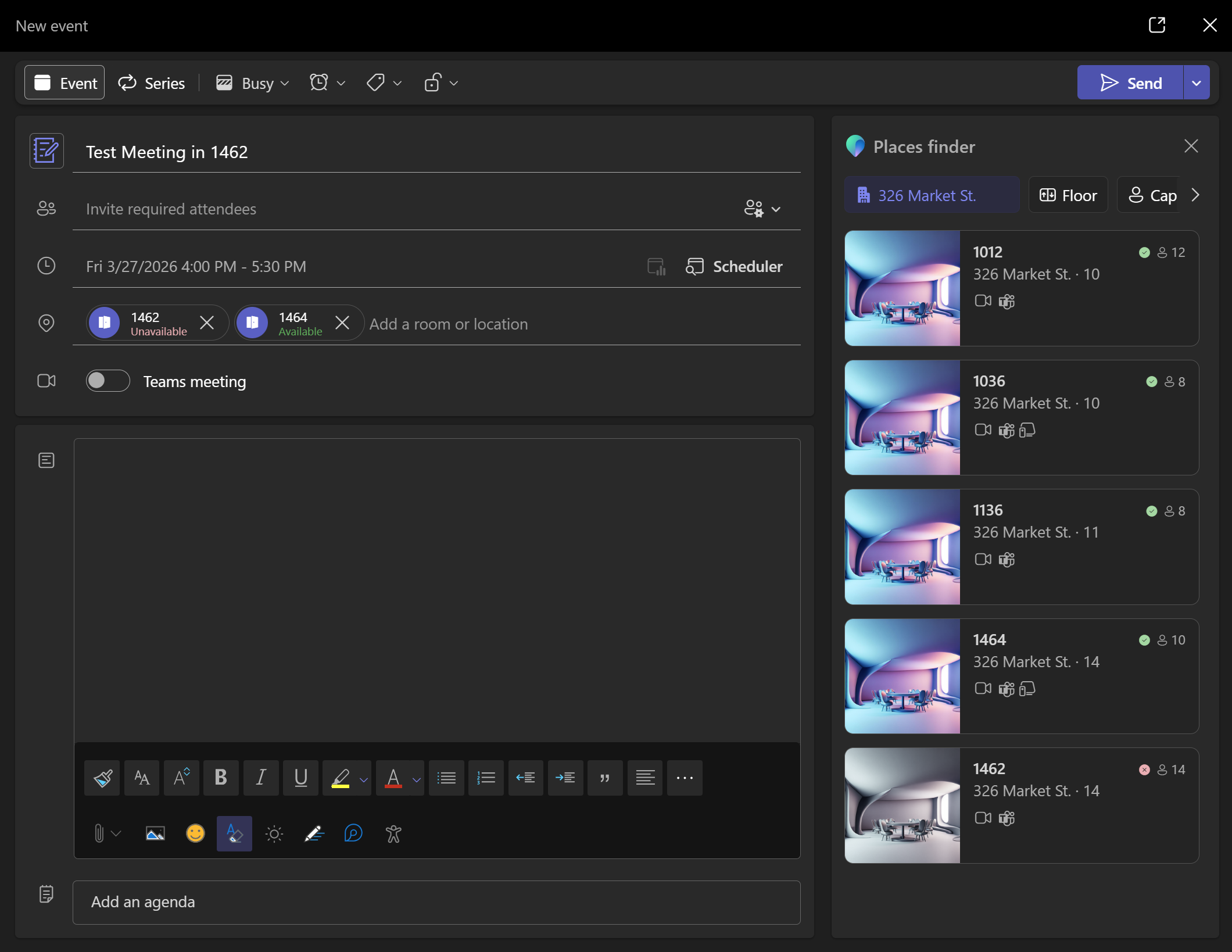
3. Click in the "Add a room or location" box, and start typing the desired room number. If you are unsure, click "Browse all rooms"
4. A new side panel will open. Click the building icon to choose the building the desired surface hub is located in. Wait a moment for the locations to load.
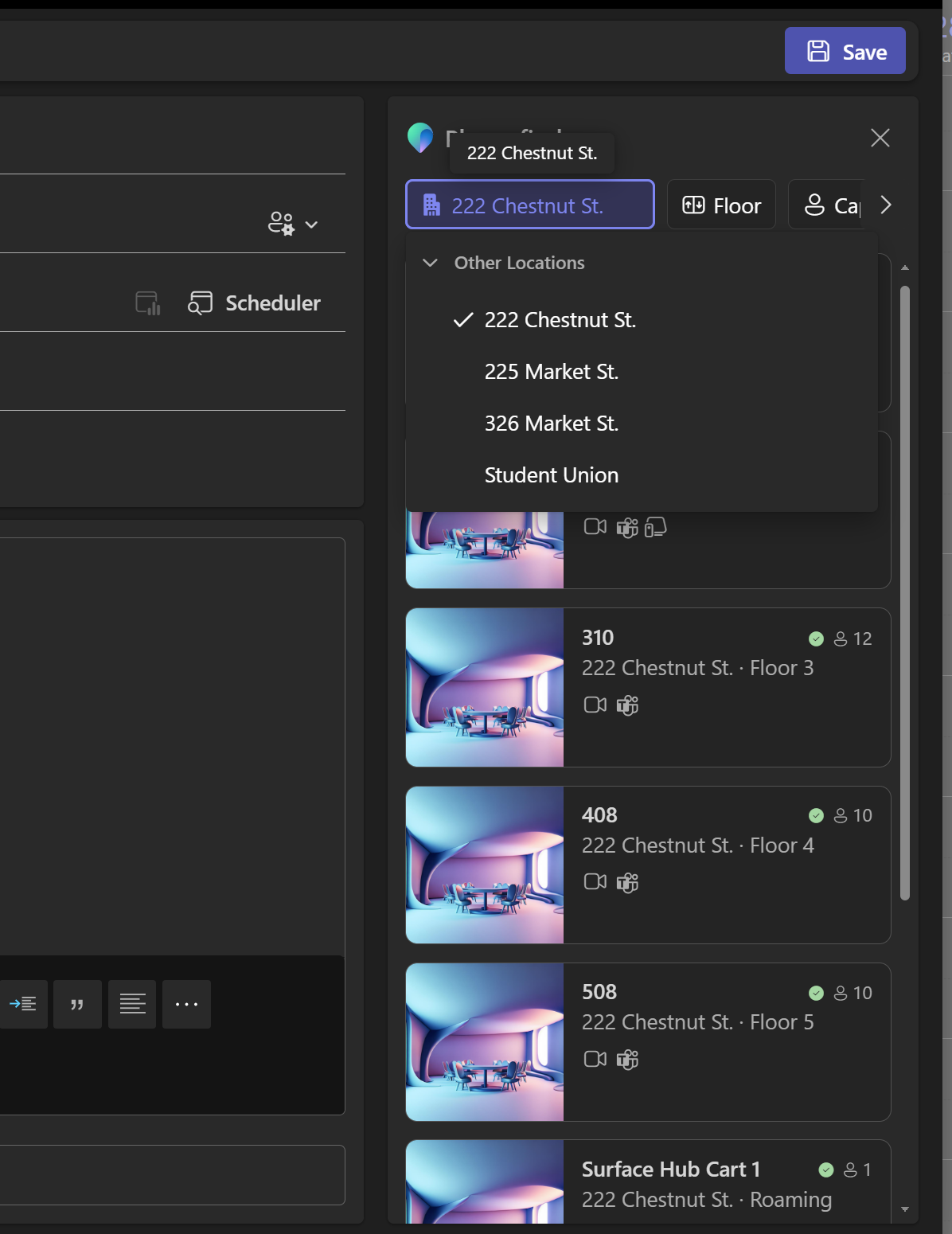
5. Click on the room number of the Surface Hub you'd like to invite to your meeting. You'll be able to see if the room is available or unavailable. If it is unexpectedly unavailable and you've confirmed there is no other reservation in 25live, please contact the OIS Help Desk for assistance.
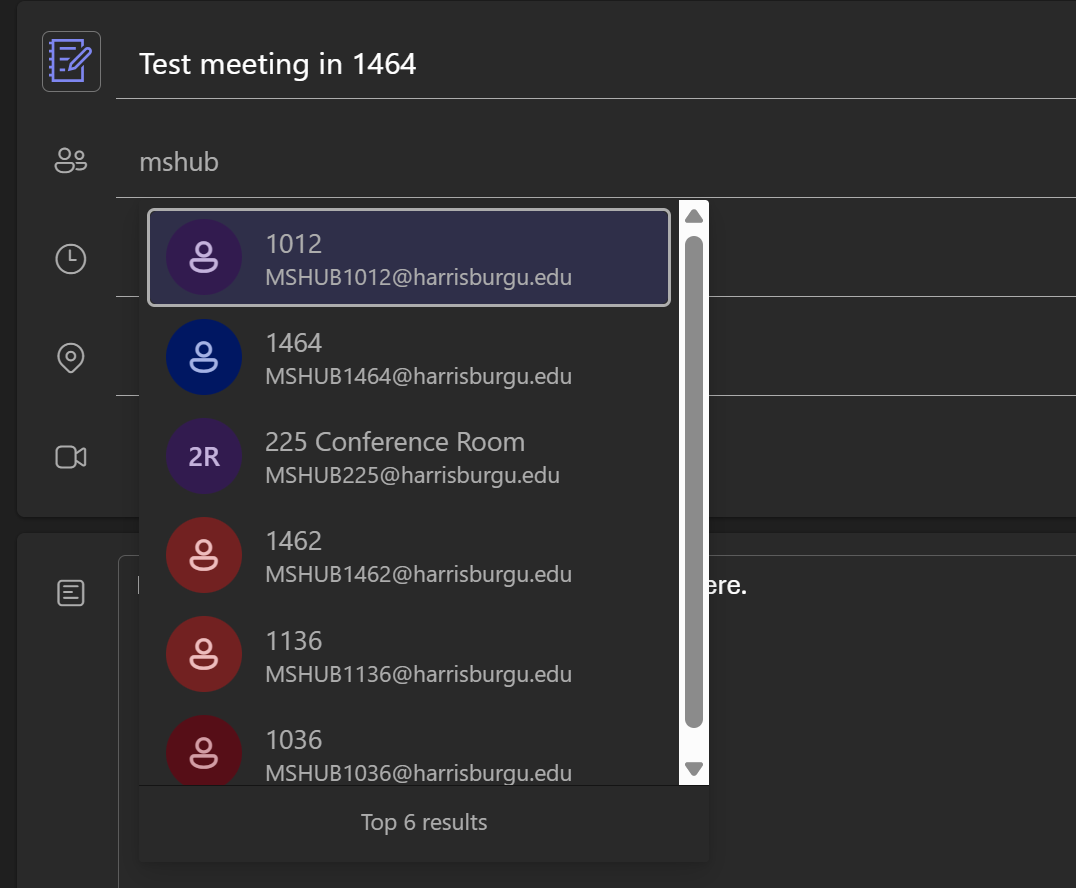
6. Alternative method: you can also invite the Surface Hub by inviting the MSHUB email as a participant. All the Surface Hub emails start with "mshub" and end with the room number.
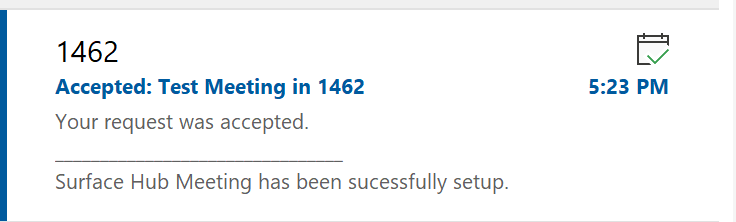
7. Click "Send" to send the invitation. You'll get an email confirmation from the Surface Hub that the meeting request has been accepted. Your virtual participants will join the meeting by clicking on the Join Meeting link in their meeting appointment that you are sending them.

8. The day of your meeting, you'll be able to see the details show up on the home screen of the Surface Hub. 15 minutes before the meeting start time, you'll be able to click on the "Join" button to join the meeting.
Section 8: How to contact the OIS Help for assistance
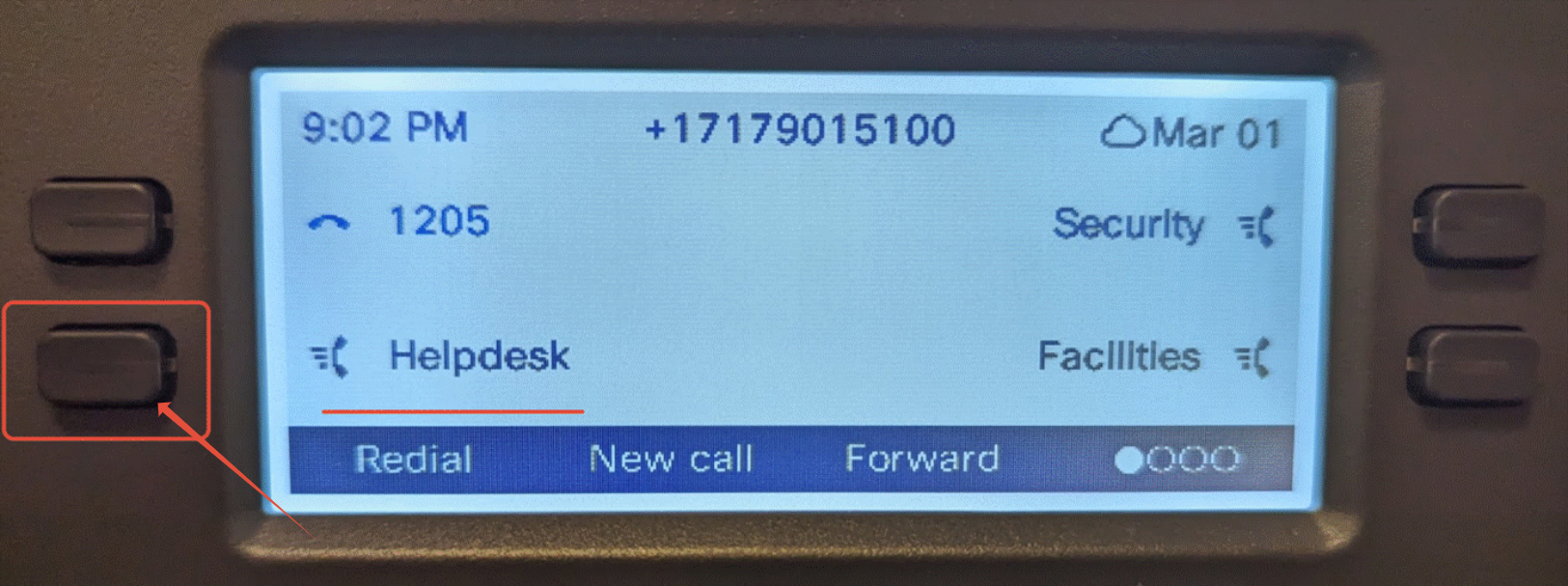
If you experience any issues connecting to a Surface Hub, please contact the OIS/IT HelpDesk (x5177) by using the speed-dial labeled "Helpdesk" on a classroom phone. If you do not see a classroom phone in the room, you can call 717-901-5177 from a personal phone or email oishelp@harrisburgu.edu to create a ticket.